Genealogy · GEDCOM explained
What Is a GEDCOM File? History, Format and How to Use It
One small text file is the reason your family tree isn’t trapped in the program you built it in. Here’s what GEDCOM is, where it came from, what’s inside, and how to move a tree without losing people along the way.
By Nico Jansen, maker of Gramps2··16 min read
🇳🇱 Lees dit artikel in het Nederlands →🇩🇪 Diesen Artikel auf Deutsch lesen →🇫🇷 Lire cet article en français →🇪🇸 Leer este artículo en español →🇮🇹 Leggi questo articolo in italiano →🇵🇹 Ler este artigo em português (Portugal) →🇧🇷 Ler este artigo em português (Brasil) →
The short answer
A GEDCOM file is a plain-text file, ending in .ged, that holds a family tree so it can be moved from one genealogy program to another. It stores the people, their names, dates and places, and how they are related. Nearly every genealogy website, desktop program and app can export and import it, which makes it the common language of family tree software.
- ·Stands for: Genealogical Data Communication
- ·Created: 1984, by the organisation behind FamilySearch
- ·Version most software uses: GEDCOM 5.5.1 (current version: GEDCOM 7)
- ·Good to know: photos are not inside a classic GEDCOM file
Sooner or later, everyone who builds a family tree runs into the same three letters. You want to leave a website you’ve outgrown. A cousin offers to send you “the whole tree”. You’d like a copy of ten years of research that doesn’t depend on one company staying in business. Each time, the answer is a file ending in .ged.
GEDCOM is older than the web, a little odd to look at, and far from perfect. It is also the single most important thing to understand about genealogy software, because it decides whether your research belongs to you or to the program you typed it into.
This guide explains GEDCOM from the ground up: the history, the format, the versions, how the well-known programs handle it, and a checklist for moving a tree safely. If you’re only just starting out, read how to start a family tree first and come back when you have a tree worth moving.
What is a GEDCOM file?
GEDCOM is the standard file format for exchanging family tree data between genealogy programs. The name is short for Genealogical Data Communication, and most people pronounce it “jed-com”. A GEDCOM file has the extension .ged and contains nothing but text.
Think of it as the PDF of genealogy, with one difference: a PDF is for looking at, a GEDCOM file is for handing over. It isn’t how a program stores your tree while you work in it. Every program has its own database for that. GEDCOM is the format a program writes when your tree has to leave, and reads when a tree comes in from somewhere else.
That makes it useful for three things:
- Switching programs. Export from the old one, import into the new one.
- Sharing research. Send a relative your tree, whatever software they use.
- Keeping a copy. A text file you can still open in thirty years, without the program that made it.
Where does GEDCOM come from?
GEDCOM was created in 1984 by the Family History Department of The Church of Jesus Christ of Latter-day Saints, the organisation behind FamilySearch. Family history is central to the church’s practice, and by the early 1980s its members were entering their research into home computers. The department needed a way for those personal files to travel: from a member’s computer to the church’s databases, and from one program to another.
The early versions went hand in hand with Personal Ancestral File, the church’s own genealogy program. Because that program was so widely used, other software makers added GEDCOM support to stay compatible, and a format written for one organisation became the standard for an entire hobby.
| Year | Version | What happened |
|---|---|---|
| 1984 | GEDCOM 1.0 | First release. |
| 1985 | GEDCOM 2.0 | Released alongside Personal Ancestral File 2.0. |
| 1987 | GEDCOM 3.0 | Published as a standard. |
| 1989 | GEDCOM 4.0 | Published as a standard. |
| 1995 | GEDCOM 5.5 | The version that spread across the software industry. Unicode had been added to the drafts leading up to it. |
| 1999 | GEDCOM 5.5.1 | Published as a draft that added UTF-8 text. Software makers adopted it anyway, and it became the everyday standard. |
| 2001 | GEDCOM XML 6.0 | A draft based on XML. It was never finished or adopted. |
| 2012 | GEDCOM X | A separate FamilySearch project for exchanging data online. Despite the name, it is not a new version of the file format. |
| 2019 | GEDCOM 5.5.1 | Formally released, twenty years after the draft. |
| 2021 | GEDCOM 7.0 | The first major update in over two decades: UTF-8 only, clearer rules, and photos bundled through GEDZIP. |
The remarkable part of that table is the gap. For about twenty years, the whole genealogy world exchanged data in a format that officially was still a draft. That long standstill explains most of GEDCOM’s quirks, and why programs filled the gaps with their own additions. FamilySearch publishes the current specification at gedcom.io, where it is still being refined.
What does a GEDCOM file look like inside?
A GEDCOM file is a list of short lines, each with a level number, a tag, and usually a value. You can open one in any text editor. This complete, valid file describes a couple and their daughter:
0 HEAD
1 GEDC
2 VERS 5.5.1
2 FORM LINEAGE-LINKED
1 CHAR UTF-8
0 @I1@ INDI
1 NAME Anna /Visser/
1 SEX F
1 BIRT
2 DATE 12 MAR 1901
2 PLAC Utrecht, Netherlands
1 FAMS @F1@
0 @I2@ INDI
1 NAME Pieter /de Vries/
1 SEX M
1 FAMS @F1@
0 @I3@ INDI
1 NAME Maria /de Vries/
1 SEX F
1 FAMC @F1@
0 @F1@ FAM
1 HUSB @I2@
1 WIFE @I1@
1 CHIL @I3@
1 MARR
2 DATE 4 JUN 1925
0 TRLR
Three ideas are enough to read it.
Levels. The number at the start of each line shows what belongs to what. A line at level 0 starts a new record. A line at level 1 says something about that record, and a line at level 2 says something about the level 1 line above it. So 2 DATE 12 MAR 1901 is the date of the birth, which is an event of Anna.
Tags. The word after the number is a tag of up to four letters that names the kind of information. Surnames sit between slashes, so a program knows that “de Vries” is the family name.
Links. The codes between @ signs are identifiers. People are not linked to each other directly. Each person points to a family record, and the family record points back to its members. That is how a file of loose lines turns into a tree.
| Tag | Meaning |
|---|---|
| HEAD / TRLR | Header and trailer: the first and last line of every file. |
| INDI | An individual, one record per person. |
| FAM | A family: a couple and their children. |
| NAME, SEX | A person’s name and sex. |
| BIRT, DEAT, MARR | Events: birth, death, marriage. |
| DATE, PLAC | The date and place of the event above it. |
| HUSB, WIFE, CHIL | The partners and children in a family record. |
| FAMS, FAMC | A person’s link to the family where they are a partner, or a child. |
| SOUR, NOTE | A source and a note. |
| OBJE | A photo or document, referred to by file name or link. |
What a GEDCOM file carries, and what it loses
GEDCOM carries the facts of your tree reliably, and the extras of your program unreliably. Knowing which is which saves you from surprises after an import.
| Information | Survives a GEDCOM transfer? |
|---|---|
| People, names, sex | Yes. |
| Parents, partners, children | Yes. This is what the format was built for. |
| Births, marriages, deaths with dates and places | Yes. |
| Notes and sources | Usually. The details of a citation can come out simplified. |
| Photos and documents | No, not the files themselves. A 5.5.1 file only refers to them by name or link. |
| Custom fields, labels, colours, chart layout | Often not. These are specific to the program that made them. |
| DNA matches, record hints, messages | No. These live on the website, not in your tree. |
The reason for the grey area is that the standard allows programs to invent their own tags, which start with an underscore. One program’s _MILT for military service means nothing to another, which will skip it or drop it into a note. The file is valid. The information just doesn’t arrive where you expect it.
GEDCOM also carries the assumptions of 1984. The family record is built around a couple with children, with tags named HUSB and WIFE. Modern programs use those two slots for any two partners, and the current specification says a partner’s role should not be read from the tag name. Events that involve many people at once, such as a census listing a whole household, have to be repeated for each person.
GEDCOM 5.5.1 or GEDCOM 7?
GEDCOM 5.5.1 is the version nearly all software reads and writes, and GEDCOM 7 is the current version that software is slowly moving towards. For exchanging a tree today, 5.5.1 is the safe choice.
| GEDCOM 5.5.1 | GEDCOM 7 | |
|---|---|---|
| Published | Draft in 1999, formal release in 2019 | 2021, with regular small updates since |
| Text encoding | Several allowed, including the older ANSEL | UTF-8 only |
| Photos and documents | Referred to by file name or link | Can be bundled in a GEDZIP package |
| Rules | Leaves room for interpretation | Tightened, with ambiguities removed |
| Software support | Practically universal | Growing, not yet universal |
The two versions are not interchangeable: a program that only knows 5.5.1 can’t be expected to read a GEDCOM 7 file. FamilySearch keeps a list of companies that have committed to adopting version 7, and it includes most of the well-known names. Until that work is finished everywhere, choose 5.5.1 when a program asks which version to export, unless you know the receiving program reads 7.
What is GEDZIP?
GEDZIP is the answer to GEDCOM’s oldest complaint. It is a zip package that holds a GEDCOM 7 file together with the photos and documents it refers to, so a tree and its pictures can travel as one file. It only helps when both the sending and the receiving program support it.
And GEDCOM X?
GEDCOM X is a different thing with a confusing name. FamilySearch announced it in 2012 as a set of open specifications for exchanging genealogical data between online services. It is not the successor to the .ged file, and it is not what a program means when it offers “GEDCOM export”.
How genealogy software uses GEDCOM
Every genealogy program keeps your tree in its own format and uses GEDCOM as the door in and out. The websites store your tree on their servers, the desktop programs in a database file on your computer, and the apps on your device. GEDCOM is the one thing they have in common.
| Program | Type | How it uses GEDCOM |
|---|---|---|
| Ancestry | Website | Upload a GEDCOM file to start a tree, and export your tree from its settings. Photos and records attached on the site are not part of the file. |
| MyHeritage | Website and desktop program | Import a GEDCOM file, and export one from Manage trees on the website. You get the file through a download link by email. |
| FamilySearch Family Tree | Website | One shared tree for everyone, not a file of your own. FamilySearch is also the organisation that maintains the GEDCOM standard. |
| Geneanet, WikiTree | Websites | Both accept a GEDCOM file and let you export your tree as one. |
| Family Tree Maker, RootsMagic, Legacy Family Tree | Desktop programs | Own database files, with GEDCOM import and export in the file menu. |
| Family Historian | Desktop program | Unusual in that it uses GEDCOM itself as its working file format. |
| MacFamilyTree, Reunion, Heredis | Mac programs | Own formats, with GEDCOM import and export. |
| Gramps | Open-source desktop program | Stores trees in its own format and reads and writes GEDCOM. A separate project from Gramps2, despite the similar name. |
| Gramps2 | App for iPhone, iPad and Mac | Opens .ged files into a new tree and exports any tree as a GEDCOM file. |
Menus move around between versions, so if an export option isn’t where you expect it, search the program’s help pages for “GEDCOM”. If a program can’t export GEDCOM at all, treat that as a warning: anything you put in will be hard to get out.
How to move your family tree with a GEDCOM file
Moving a tree takes six steps: export, keep a copy, look inside, import, compare, and add your photos again. None of them is difficult. Skipping the checks is what goes wrong.
1. Export the tree from your current program
Look in the tree’s settings on a website, or in the File menu of a desktop program, for “Export” and choose GEDCOM. If you’re asked about living people, include them for a move between your own programs, and leave them out for a file you’re going to share. You end up with one file ending in .ged.
2. Keep an untouched copy
Before anything else, save that file somewhere safe and don’t edit it. If an import goes wrong, or you later find that something is missing, the original export is your way back. Keep the old tree where it is until you’re satisfied with the new one.
3. Look inside the file
Open the file in a plain text editor. You should see lines like the example above, beginning with 0 HEAD. Scroll to a name with an accent, such as é or ü. If it looks right here, the text encoding is fine. If the file is empty, tiny, or full of strange symbols, export again before you import anything.
4. Import it into the new program
Use the import option of the new program and pick the file. Most programs create a new tree from it and finish with a summary of the people and families they read. Import into a new, empty tree, not into an existing one: merging two trees is a separate job, and far harder to undo.
5. Compare the result with the original
Check that the number of people and families matches the old program. Then open a handful of relatives you know by heart and look at their dates, places, partners, children and notes. Pick at least one person with an unusual situation: a second marriage, an adoption, a name with special characters.
6. Add your photos and documents again
A classic GEDCOM file contains no pictures, only their file names. Download your photos and scans from the old program or website separately, and attach them to the right people in the new one. It is the slowest step, and a good moment to finally label who is in each photo.
Common GEDCOM problems and how to fix them
Most GEDCOM trouble comes from four causes: text encoding, custom tags, repeated imports and missing media. Each has a simple fix.
| Problem | Cause | Fix |
|---|---|---|
| Accented letters turn into odd symbols | The file was written in an older encoding that the new program reads differently. | Export again and choose UTF-8 if the program offers a choice. |
| Facts are missing or ended up in notes | The old program used its own custom tags. | Check a few people after importing and re-enter what matters. Keep the original file for reference. |
| Everyone appears twice | The same file was imported into an existing tree. | Import into a new tree and delete the failed attempt. |
| No photos after importing | Photos are not inside a classic GEDCOM file. | Download the media separately and attach it again. |
| The program refuses the file | The file is incomplete, or in a version the program doesn’t read. | Check that it starts with 0 HEAD and ends with 0 TRLR, and export as GEDCOM 5.5.1. |
Is it safe to share a GEDCOM file?
A GEDCOM file is unprotected plain text, so share it as carefully as you would a list of names, birth dates and family ties. Anyone who has the file can read everything in it, with no password and no special software.
- Leave out living people when the file goes to anyone outside the close family. Many programs offer that option on export.
- Read your notes first. Private remarks you typed years ago travel along with the file.
- Think before uploading. A file uploaded to a public tree website can be copied by others, and copies don’t come back.
For ancestors who died long ago, sharing freely is how genealogy moves forward. For relatives who are alive, their details are theirs, so ask first.
GEDCOM in Gramps2
I built GEDCOM import and export into Gramps2 for the reason this whole guide is about: your family data should never be locked in. Here’s how it works in practice.
- Bring your tree in. Gramps2 opens the .ged files exported by Ancestry, MyHeritage and most desktop genealogy tools. Tap the file and share it to Gramps2, or choose Import GEDCOM from the + menu in the tree list. On the Mac you can double-click the file in the Finder.
- See what arrived. The import shows its progress and ends with a summary of the people and families it read.
- Nothing gets overwritten. Every import becomes a new tree of its own, next to the trees you already have.
- Take your tree out. Choose Export GEDCOM from the ••• menu of a tree and save the file, named after the tree, wherever you like. Shared trees can be exported too, by anyone who has the tree in their app.
- Photos stay with you. Because the format can’t embed pictures, an export refers to your media by name while the photos remain in the app and in your own iCloud.
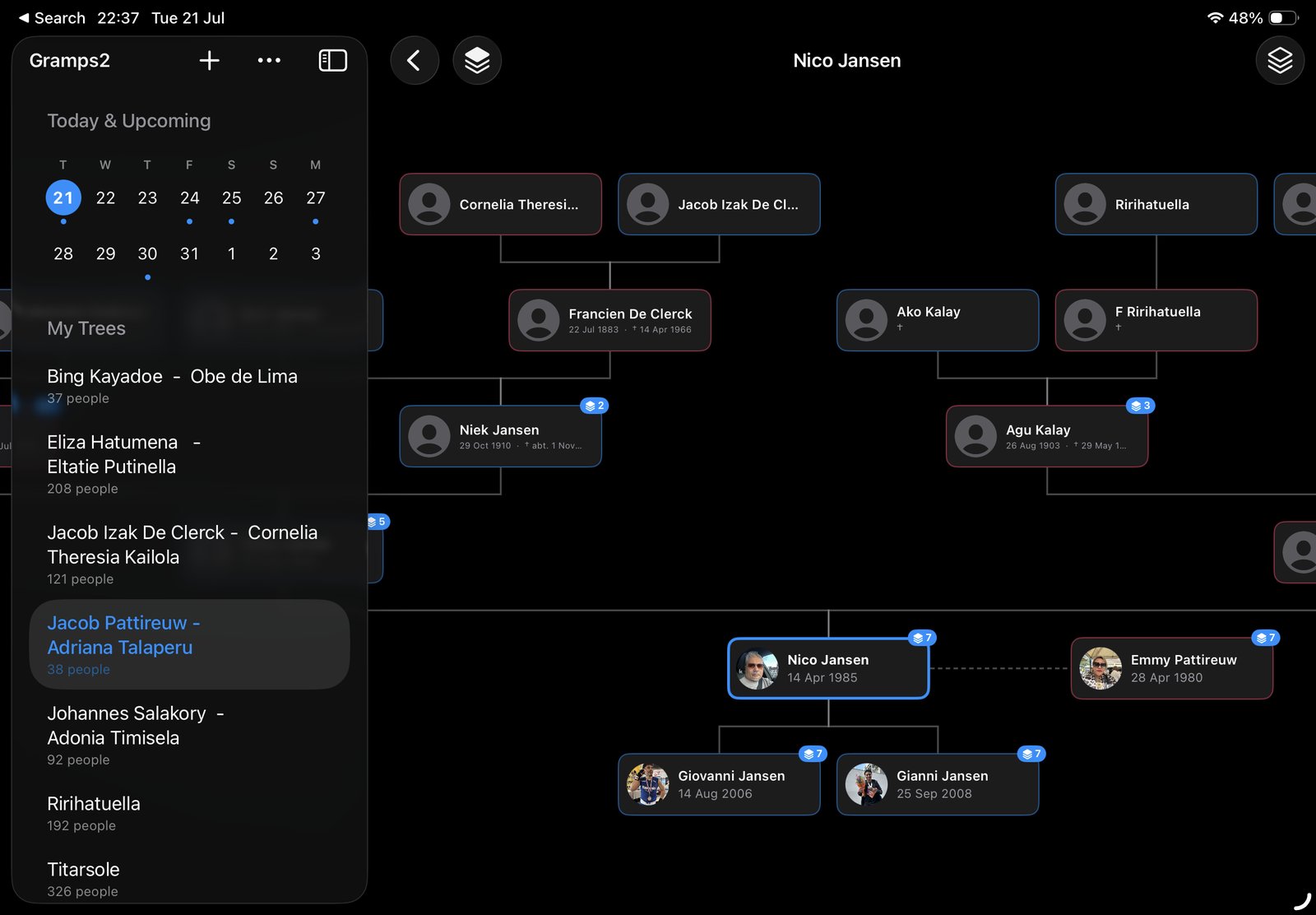
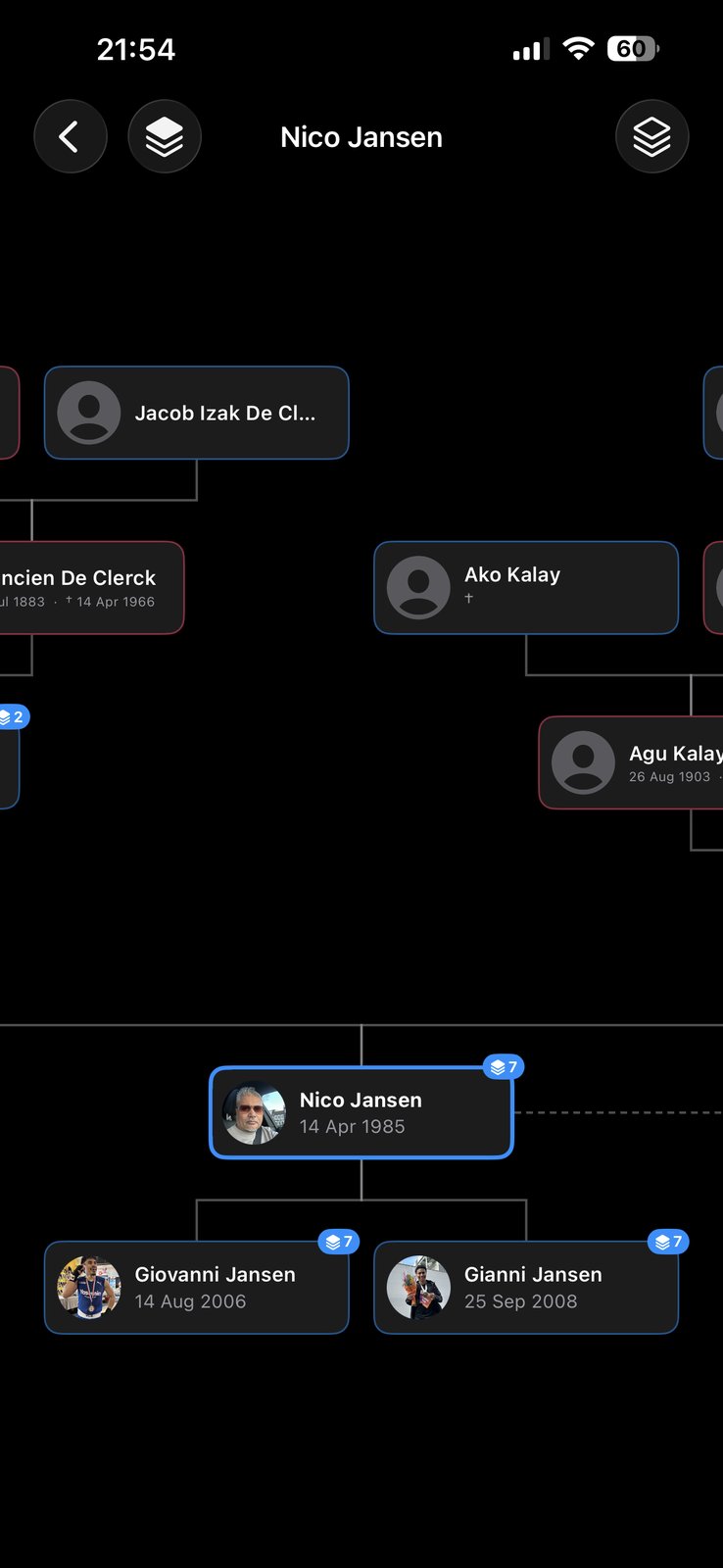
After the import, the tree is no longer a text file. You can put anyone in focus on an interactive chart, attach photos and documents to each person, and share the tree through iCloud with the family members you invite. The support page has the import and export steps in full.
Frequently asked questions
What is a GEDCOM file?
A GEDCOM file is a plain-text file that holds a family tree: the people, their names, dates and places, and how they are related. It ends in .ged and is the standard format for moving family tree data from one genealogy program or website to another.
What does GEDCOM stand for?
GEDCOM stands for Genealogical Data Communication. It was created in 1984 by the Family History Department of The Church of Jesus Christ of Latter-day Saints, the organisation behind FamilySearch, which still maintains the specification today.
How do I open a GEDCOM file?
Import it into a genealogy program or app, which turns the file back into a family tree you can browse. Because a GEDCOM file is plain text, you can also open it in any text editor to read or check it, but a text editor will not show it as a tree.
Does a GEDCOM file include photos?
Not in the version most programs use. A GEDCOM 5.5.1 file can only refer to photos and documents by file name or link, so the pictures themselves stay behind and you add them again after importing. GEDCOM 7 introduced GEDZIP, a package that bundles the media with the data, but far fewer programs support it yet.
What is the difference between GEDCOM 5.5.1 and GEDCOM 7?
GEDCOM 5.5.1 dates from 1999 and is the version nearly every genealogy program reads and writes. GEDCOM 7, released in 2021, tidies up the format: it always uses UTF-8 text, removes ambiguities, improves notes, and adds the GEDZIP package for photos. Files from the two versions are not interchangeable, so 5.5.1 remains the safe choice for exchanging data today.
Can I move my family tree from Ancestry or MyHeritage to another app?
Yes. Both let you export your tree as a GEDCOM file. On Ancestry the export is in the tree’s settings; on the MyHeritage website it is under Manage trees. Import that file into the other app and your names, dates, places and relationships come across. Photos are added again afterwards.
Do I lose information when I export to GEDCOM?
The core of your tree survives: people, relationships, dates, places, and usually notes and sources. What can get lost is anything specific to one program, such as photos, custom fields, colour labels, layout, DNA matches and record hints. Compare the import with the original before you stop using the old program.
Is GEDCOM still used today?
Yes. More than forty years after its first release it is still the one format that practically every genealogy website, desktop program and app has in common. The specification is actively maintained by FamilySearch, with GEDCOM 7 as the current version.
Which family tree app on iPhone, iPad and Mac can import and export GEDCOM?
Gramps2 opens GEDCOM (.ged) files exported by Ancestry, MyHeritage and most desktop genealogy tools, and exports any tree as a GEDCOM file again. It runs on iPhone, iPad and Mac, stores your tree on your devices and in your own iCloud, and lets you share a tree with the family members you invite.