Genealogy · Sharing your tree
How to Share a Family Tree with Your Family: 6 Ways Compared
A family tree that only you can see is half finished. Here are six ways to get it in front of your relatives, from a print on the wall to one tree the whole family builds together, and how to keep living people’s details private while you do it.
By Nico Jansen, maker of Gramps2··15 min read
🇳🇱 Lees dit artikel in het Nederlands →🇩🇪 Diesen Artikel auf Deutsch lesen →🇫🇷 Lire cet article en français →🇪🇸 Leer este artículo en español →🇮🇹 Leggi questo articolo in italiano →🇵🇹 Ler este artigo em português (Portugal) →🇧🇷 Ler este artigo em português (Brasil) →
The short answer
To share a family tree with your family, send a chart as a PDF or print to relatives who only want to look, and invite the relatives who want to help into one shared tree that everyone can edit. A GEDCOM file is the way to hand the data itself to someone who uses other genealogy software. Whichever way you pick, check what the tree says about living people before it leaves your hands.
The five steps:
You have done the work. The names are in, the dates are checked, and the lines run back four or five generations. And then the tree sits on your phone or your laptop, where exactly one person looks at it: you.
That is a pity for two reasons. A family tree answers questions the whole family has, like the one I grew up with: when my mother said we were “family of” someone, how exactly? And your relatives hold what you are missing. The aunt who knows the maiden name, the cousin with the box of photos, the grandfather who can still say who is standing in the back row.
So sharing is not the last step of the research. It is how the research goes on. This guide compares six ways to do it, says what each one is good and bad at, and covers the part that deserves care: the living people in your tree.

What are the ways to share a family tree?
There are six practical ways to share a family tree: on paper, as an image or PDF, as a GEDCOM file, on a genealogy website, as a shared tree in an app, and on a screen with the family in the room. They differ in three things: whether your relatives can add to the tree, what they need in order to open it, and who else can see it.
| Way | What the family gets | Can they add to it? | What they need | Best for |
|---|---|---|---|---|
| Printed chart | A sheet or poster of one branch | With a pen | Nothing | Grandparents, a birthday, the wall |
| Image or PDF | The same chart on their screen | No | A phone or computer | The family group chat, email |
| GEDCOM file | Their own copy of the data | In their copy only | A genealogy program | A relative who also does research |
| Genealogy website | Access to your tree online | If you give them that role | An account on that site | Families already on that platform |
| Shared tree in an app | The tree itself, always current | Yes | The app and a device that runs it | Building one tree together, in private |
| On a screen together | A guided tour, with you as the guide | By telling you | To be in the room | Reunions, holidays, visits |
Most families end up using two of these. One for the handful of relatives who join in, and one for everybody else, who are happy with a chart once a year. You do not have to choose a single way. You do have to choose which tree is the real one, and I will come back to that.
Should relatives only look, or also add to the tree?
Decide first whether your relatives should only view the tree or also change it, because that one choice rules out half of the options. A PDF can never be edited. A shared tree can, and that is its whole point.
Viewing is enough for most of the family. They want to see where they are in the picture, find their grandparents, and show the children. Give them something that opens without an account, a password or an explanation. For them a PDF is better than the most advanced platform, because they will open it.
Editing is for the two or three people who care as much as you do. They know another side of the family, they have the photos, they will sit with an older relative and fill in the gaps. If they can only send you corrections by message, you become the bottleneck, and half of what they know never reaches the tree. Give them the tree itself.
There is a middle form that works well in practice: relatives look at a chart, write or tell you what is wrong or missing, and you enter it. It is slower, but it keeps one person responsible for what goes in. For a tree with careful sources, that can be exactly what you want.
How do you share a family tree on paper or as a PDF?
To share a family tree on paper or as a PDF, pick one person to build the chart around, choose the chart type and the number of generations, export it, and send or print the result. No chart shows a whole family. Every chart is a view from one person, so the first question is always: whose chart is this?
| Chart type | What it shows | Good for |
|---|---|---|
| Pedigree or ancestor chart | One person and their parents, grandparents and further back | Showing someone where they come from |
| Descendant chart | One ancestor or couple and everyone who descends from them | A reunion of one family line |
| Hourglass chart | One person in the middle, ancestors above and descendants below | A grandparent: their parents and their grandchildren on one sheet |
| Fan chart | Ancestors in half circles around one person | Many generations of ancestors on a compact sheet |
| Family group sheet | One couple and their children, with dates and places | Asking relatives to check or complete one family |
Then the size. Ancestors double with every generation: 2 parents, 4 grandparents, 8 great-grandparents, 16 after that. A chart of one person and four generations of ancestors already holds 31 people. That still fits on a single A4 or Letter page if the cards are small. Add the descendants of a couple with large families below them, and you are past what a home printer can do.
For a chart that people will read on a phone or print at home:
- Limit the generations. Three or four up and two down stays readable. Make a second chart for another branch instead of one chart with everything.
- Choose PDF over an image when you can. A PDF built from lines and text is a vector file: people can zoom in on a name without it turning blurry. An image is fine for a chat message, where it shows up directly.
- Use a light background. A dark chart looks good on screen and empties an ink cartridge on paper.
- Put a name and a date on it. “Descendants of Anna and Willem, November 2026” tells people what they hold and which version it is.
For a wall chart, take the PDF to a print or copy shop. Large-format printers work from rolls, commonly 24 or 36 inches wide, or print standard poster sizes up to A0, which is 84 by 119 cm. Before you order, look at the PDF at its real size on screen and check that the smallest text is still readable. If it is not, a larger sheet helps more than a smaller font.
Paper has one advantage no app has. Lay a printed chart on the table at a family gathering with a pen next to it, and people start correcting it. Take a photo of the result before you go home.
When should you send a GEDCOM file?
Send a GEDCOM file when the other person wants the data itself, to open in their own genealogy program or to upload to a website. GEDCOM is the standard exchange format for family trees: a text file ending in .ged that almost every genealogy program and website can import and export.
Three things to know before you send one:
- It is a copy, not a connection. From the moment you send it there are two trees. What your cousin adds to theirs does not appear in yours.
- It contains everything. A GEDCOM export normally includes every person in the tree, living ones too, with all the dates and notes you entered. The person who receives it can upload it anywhere. Send it only to someone you trust with that.
- It does not carry photos. The format holds people, events, places and relationships. Pictures and scans have to travel separately.
A GEDCOM file is the wrong thing to send to a relative who just wants to see the tree. They cannot open it without genealogy software. For how the format works and what survives a transfer, see what is a GEDCOM file.
How does sharing work on the big genealogy websites?
On a genealogy website you share a tree by inviting people to it, or you work in one large tree that is shared with everyone by design. These are two different models, and it helps to know which one a site uses before you ask your family to sign up.
| Website | How sharing works | Living people |
|---|---|---|
| Ancestry | Your own tree, public or private. You invite people by link and give each a role: a guest views and comments, an editor can change the tree. | Hidden from guests unless you allow it per person; editors see them. |
| MyHeritage | Your tree lives on a family site. You invite relatives as members of that site and set what members may do. | Visible to the members of your family site; privacy settings decide what others see. |
| FamilySearch | One shared tree for all of humanity. Anyone can see and edit deceased ancestors. A family group tree lets a group of relatives share living people. | Private to the person who entered them, unless shared in a family group tree. |
| Geneanet | Your own tree, usually published for other researchers to find. You can give relatives extra access. | Can be hidden from the public and shown to the relatives you invite. |
| WikiTree | One shared tree that members build together, with a list of trusted people per profile. | Profiles of living people are private, open to the people on their trusted list. |
The strength of these sites is their reach. A tree on a big platform is found by distant cousins you did not know existed, and they bring branches and photos with them. If finding relatives is your goal, this is the place.
The downside is the threshold. Everyone you invite needs an account, and some will not make one. Menus and roles also change over time, so check the site’s own help page when you invite people. And think about what the site does with a tree by default. On several of them, a new tree is visible to other members unless you change the setting.
The single shared tree of FamilySearch or WikiTree is a special case. You do not own your ancestors there. Another descendant can change your great-grandmother’s birth date, with or without a good source. That is the idea, and it works better than you would expect, but it is cooperation with strangers. It does not replace a tree of your own. Our comparison of genealogy software goes through these platforms in more detail.
How do you share a family tree privately?
To share a family tree privately, use a way where only the people you name can open it: a file you send yourself, or a tree shared by personal invitation and not published anywhere. Private does not have to mean offline. It means you decide who is on the list.
From most to least control:
- Paper, handed over. As private as it gets, until someone photographs it.
- A PDF or image you send. Private between you and the receiver, but a file can be forwarded. Share a chart without living people’s full dates if that worries you.
- A tree shared by invitation. Only the invited people can open it, and it stays current. Check where the data is stored and whether the service can use it for anything else.
- A private tree on a genealogy website. Hidden from other members and from search engines, as long as the privacy setting stays the way you set it.
Three questions tell you how private a way of sharing really is. Who can open the tree without being invited? Where is the data stored, and by whom? And can an invited person pass it on? For a file the last answer is always yes. That is not a reason to distrust your family. It is a reason to think about what goes into the file.
What about living relatives and privacy?
Living people are the sensitive part of a family tree: share their details within the family with care, and do not publish them on the open internet without their consent. Your great-great-grandfather cannot be harmed by his birth date. Your niece can.
A full name, a date of birth, a place of birth and a mother’s maiden name are the answers to the security questions of many a bank and helpdesk. A tree that lists them for living people, findable through a search engine, is a gift to someone with bad intentions. This is why the big genealogy sites hide living people from the public by default.
The law draws roughly the same line. In the EU and the UK, the GDPR protects the personal data of living people and does not apply to the dead, although some countries have added rules of their own for the recently deceased. It also leaves purely personal and household activity alone, and keeping a tree for your own family falls on that side. Publishing a tree with living people on a website that everyone can read does not. Other countries have their own rules. I am a developer and not a lawyer, so take this as orientation and not as legal advice.
Some facts need care even inside the family. Before you share, look for:
- Adoptions and unknown fathers. A tree can reveal something to a person that nobody has told them yet.
- Earlier marriages and half-siblings. Known to one generation, sometimes not to the next.
- Causes of death, illness, prison, bankruptcy. History when it is a century old. Something else when the children are still alive.
- Notes you wrote for yourself. “According to aunt Ria, not his real father” is useful in research and painful in a family chat.
- Addresses, phone numbers and email. Useful in a tree you share with close family. Leave them out of anything that travels further.
- Children. Many parents prefer their children’s full names and birth dates not to circulate. Ask them.
The simplest rule is to ask. “I’m sharing our family tree with the cousins, are you fine with being in it?” takes one message, and almost everyone says yes. The few who say no will be glad you asked.
How to share your family tree in 5 steps
Sharing a family tree comes down to five decisions: for whom, what goes in, which way, with what explanation, and which copy is the real one.
1. Decide who the tree is for and what they should be able to do
Write down the relatives you want to reach, and put them in two groups: the ones who will look, and the ones who will help. Be honest about the second group. It is usually small. For each group, think about what they have: a phone, a computer, or neither.
2. Check the tree before it goes out
Go through the living people and the list in the section above. Fix the things you would be embarrassed by: the person entered twice, the placeholder name, the date you guessed and never checked. Mark what is uncertain as uncertain. A shared tree gets copied, and so do its mistakes.
3. Pick the way that fits
A printed chart or a PDF for the lookers. A shared tree for the helpers, on the platform they already use or in an app you all have. A GEDCOM file for the relative with their own genealogy program. If you pick a shared tree, choose one that also exports a chart, so the same tree serves both groups.
4. Send it with a short explanation
A chart without context gets a thumbs-up and nothing else. Say who is at the center, how far back it goes, and what you are still looking for. Ask one concrete question: “Does anyone know the name of grandpa’s eldest sister?” gets more answers than “let me know if anything is wrong”.
5. Keep one master copy and keep it current
The moment a tree is shared as files, versions appear. Decide which tree is the master, say so, and enter every correction there first. Send out a new chart when enough has changed, with the date on it. With a shared tree this step mostly disappears, because everyone looks at the same tree.
Sharing in person: reunions and the big screen
The most effective way to share a family tree is to show it to relatives who are in the same room, because that is when the stories come out. A chart in an email gets looked at for a minute. A tree on the wall at a reunion gets an hour and three corrections.
Things that work at a family gathering:
- A large print with pens. Hang a descendant chart of the couple everyone has in common, and let people add and correct.
- The tree on the television. Put the chart on the biggest screen in the house and walk through it, one branch at a time. Let the oldest person in the room choose where to go next.
- Photos next to names. A face gets a reaction that a date never gets. Unknown people in old photos are the best conversation starters.
- Someone who takes notes. Or record the conversation on a phone, after asking. You will not remember which aunt said what.
If you have not started the tree yet and the reunion is the reason you are reading this, our guide on how to start a family tree gets you to a first chart.
Ground rules for a tree that several people edit
A tree that several people edit stays reliable when everyone agrees on a few rules about names, sources and deleting. Without them, good intentions produce duplicates and quiet disagreements.
| Rule | Why it helps |
|---|---|
| One way of writing names | Agree on birth names for women, and on where nicknames go. It prevents the same person being added twice. |
| Say where a fact comes from | A note such as “birth record” or “told by uncle Jan” lets the others judge how solid it is. |
| Search before you add | Most duplicates come from adding a person who was already there under a slightly different name. |
| Ask before you delete or overwrite | If two relatives remember a date differently, talk first. Keep the other version in a note until a record settles it. |
| One person keeps the overview | Not a boss, but someone who looks through the tree now and then and tidies up. |
| What is in the tree stays in the family | Everyone who can open the tree can also pass it on. Agree that nobody uploads it elsewhere without asking. |
Keep the group small at first. Start with two or three relatives, find out what goes wrong, and invite the rest when the rules have settled. And export a GEDCOM file now and then as a backup of the state you were happy with.
One tree for the whole family with Gramps2
I built Gramps2 around this idea: a family tree is something you have together. It is a family tree builder for iPhone, iPad and Mac, and it covers several of the ways in this guide from one tree:
- A shared tree, by invitation. Choose Share Tree to create an invitation through iCloud. Whoever accepts sees the tree under “Shared with me”. Everyone you invite can edit, and changes sync live to all participants. There are no view-only guests, so invite the helpers and send the others a chart.
- Private by design. The tree lives on your devices and in your own iCloud. There are no niApps servers and there is no account to create. A shared tree is visible to exactly the family members you invite.
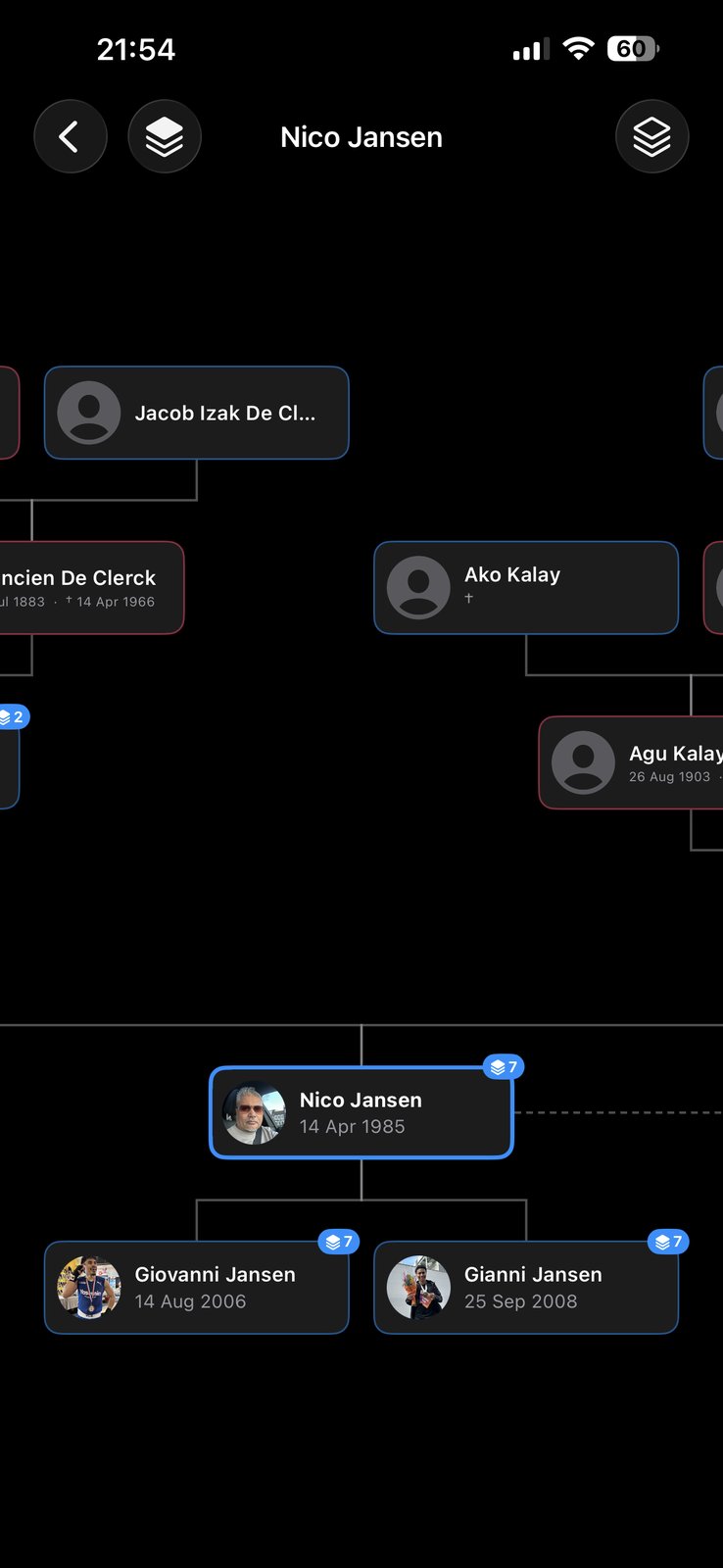
- A chart as image or PDF. The chart puts one person in focus, with ancestors above and descendants below, and you choose how many generations it shows each way. Export it as an image or as a vector PDF, on a light background so it prints well, and send it through the share sheet.
- GEDCOM in and out. Export any tree as a GEDCOM file for a relative who uses other software, or import theirs. Shared trees can be exported too, by anyone who has the tree in their app.
- On the big screen. Stream the chart to an Apple TV with AirPlay. Your iPhone is the remote: you set the number of generations and re-center the tree on any relative while the family watches.
- Faces and dates that matter. Photos and documents attach to each person, with a profile picture on the chart. Reminders for birthdays and remembrance days are set per device, so in a shared tree everyone keeps their own.
What the family needs: the Gramps2 app on an iPhone, iPad or Mac, and an iCloud account. Relatives without an Apple device get the PDF.
Frequently asked questions
What is the best way to share a family tree with family?
It depends on what the family should be able to do with it. For relatives who only want to look, send a chart as a PDF or print it. For relatives who will help build the tree, invite them to one shared tree that everyone edits, on a genealogy website or in a family tree app. For a fellow researcher who uses other software, export a GEDCOM file.
Can I share a family tree without putting it online?
Yes. A printed chart, a PDF or image sent by email or message, and a GEDCOM file all work without a public website. A tree shared by invitation is online in the technical sense, but only the people you invite can open it. It is not published and search engines cannot find it.
How do I share my Ancestry tree with someone?
Open the tree, choose Invite from the tree menu, pick a role and send the invitation link. A guest can view the tree and comment, an editor can also change it. Guests do not see living people unless you switch that on for them. The person you invite needs an Ancestry account to open the tree.
Can relatives edit a family tree that I share with them?
Only if the way you share allows it. A printed chart, a PDF and an image are read-only. A GEDCOM file gives the other person their own copy, which does not flow back into yours. On genealogy websites and in apps with shared trees, invited relatives can edit the same tree, depending on the role or rights you give them.
Is it OK to include living relatives in a family tree I share?
Within the family it usually is, and the tree is of little use without them. Ask before you add contact details or sensitive facts, and do not publish living people on a public website without their consent. In the EU and the UK, data protection law covers living people and not the dead, and it treats purely personal use within the family differently from publishing to everyone.
Which file format should I use to send a family tree?
Use PDF for a chart that people will read or print: it opens on every phone and computer and stays sharp when enlarged. Use GEDCOM (.ged) when the other person wants the data itself in their own genealogy program. A GEDCOM file carries people, dates, places and relationships, but not photos.
How do I print a large family tree?
Export the chart as a PDF and take it to a print or copy shop with a large-format printer. A PDF made of vector lines and text can be enlarged to poster size without going blurry. Check that the smallest names are still readable at the size you order, and limit the number of generations if they are not.
Which app shares a family tree privately on iPhone, iPad and Mac?
Gramps2 is a family tree builder for iPhone, iPad and Mac. You invite family members to a tree through iCloud, everyone you invite sees and edits the same tree, and changes sync between all participants. The tree is stored on your devices and in your own iCloud, not on niApps servers. Gramps2 also exports the chart as an image or PDF and the tree as a GEDCOM file.