Household · Grocery shopping
How to Share a Grocery List with Your Family: 6 Ways Compared
A grocery list only works when everyone in the house can add to it and the person in the store is looking at the latest version. Here are six ways to share one, from the note on the fridge to a list that tells the whole household when something changes.
By Nico Jansen, maker of Tjatjie··15 min read
🇳🇱 Lees dit artikel in het Nederlands →🇩🇪 Diesen Artikel auf Deutsch lesen →🇫🇷 Lire cet article en français →🇪🇸 Leer este artículo en español →🇮🇹 Leggi questo articolo in italiano →🇵🇹 Ler este artigo em português (Portugal) →🇧🇷 Ler este artigo em português (Brasil) →
The short answer
To share a grocery list with your family, put it in one digital list that every household member can open and edit on their own phone: a shared list in Apple Reminders, a shared note, or a grocery list app. Pick the one that runs on every phone in the house and that notifies the others when an item is added, because a list nobody knows has changed is the reason for the second trip to the store.
The five steps:
You know the moment. You are home, the bags are on the counter, and someone asks: “Did you get milk?” It was not on your list. It was on the note on the fridge, or in a message from three hours ago, or in someone’s head.
The problem is rarely that a household has no grocery list. It has four. A paper one in the kitchen, a note on one phone, a thread in the family chat, and the things somebody meant to mention. In our house the standard message was “can you put this on the list?”, sent to whoever happened to own the list that week.
Sharing a grocery list means getting from four lists to one. This guide compares six ways to do that, shows how the built-in iPhone apps handle it, and explains what to look for if you want more than a note with checkboxes.
What are the ways to share a grocery list?
There are six common ways to share a grocery list: a paper list in the kitchen, a group chat, a shared note, a shared list in Apple Reminders, a list you fill by voice through a smart speaker, and a dedicated grocery list app. They differ in three things: whether everyone can add from wherever they are, whether the shopper sees the latest version, and whether anyone hears that the list changed.
| Way | Who can add | Is it current in the store? | Do the others hear about changes? | Best for |
|---|---|---|---|---|
| Paper list or whiteboard | Whoever is in the kitchen | Only if you take it, or a photo of it | No | One person who does all the shopping |
| Group chat | Everyone, from anywhere | Yes, but spread over many messages | Yes, along with everything else in the chat | The odd “can you also get…” |
| Shared note | Everyone you share it with | Yes | Hardly: you see it when you open the note | A simple list for two people |
| Shared Reminders list | Everyone you invite, with an Apple device | Yes, sorted by section of the store | Yes, if you switch it on for the list | All-iPhone households that want nothing extra installed |
| Smart speaker list | Whoever is near the speaker | Yes, in the assistant’s app | No | Adding items while your hands are full |
| Grocery list app | Everyone you invite who has the app | Yes, often in the order of the store | Depends on the app | Households that shop several times a week |
None of these is wrong. A couple that shops once a week with a fixed routine can live with a sheet of paper. The more people add to the list, and the more often someone shops, the more the last two columns start to matter.
What makes a shared grocery list work?
A shared grocery list works when there is exactly one of it, everyone can add to it in a few seconds, and the person shopping sees every change before they reach the checkout. Everything else is a matter of taste. These five points are what to check any option against:
- One list. Not one per person, not one per app. The moment there are two, somebody has to merge them, and that somebody will forget.
- Adding is quicker than remembering. If putting toothpaste on the list takes more effort than thinking “I’ll mention it tonight”, people will think that. The list has to be on every phone, one tap away.
- The list is current. What someone adds at four o’clock has to be on the shopper’s phone at five past four, without anyone sending anything.
- The others know it changed. A shopper who does not look at the list again halfway through the store misses what was added after they left home.
- It works in the store. Supermarkets are large buildings with thick walls. A list that needs a connection to open is no use between the freezers.
There is a sixth point that only shows up after a few weeks: the list has to say enough. “Milk” is clear to the person who wrote it. The person in the store is facing a wall of milk. Quantity, a brand, or a photo of the pack saves a phone call.
Why do the paper list and the group chat fall short?
A paper list is in one place and a group chat is not a list, so both depend on one person copying items by hand. That person is usually the one who does the shopping, and the copying is where things get lost.
The paper list on the fridge is the best list in the house while you are standing in front of it. It needs no phone, no account and no explanation, and children can use it. But it stays in the kitchen. You cannot add to it from work, and whoever stops at the store on the way home does not have it with them. The usual fix is a photo of the list, which is a copy that stops being right the moment someone picks up the pen again.
The group chat solves the distance and creates a new problem. A message reaches everyone wherever they are. But groceries arrive between holiday photos and questions about dinner, in no order, and nobody can tick anything off. The shopper scrolls back through the afternoon to collect them. Two people stopping at two stores on the same day both buy the bread, because a message cannot show that something has already been bought.
Both keep their use. Paper is fine as the place where the family writes things down, as long as somebody moves them to the real list. And the chat is fine for a discussion about what to eat. Neither should be the list itself.
How do you share a grocery list on iPhone?
On an iPhone you share a grocery list by creating it in the Reminders app, setting the list type to Groceries and inviting your household with the share button. Reminders comes with every iPhone, iPad and Mac, so in a household with only Apple devices nobody has to install anything.
The steps:
- Open Reminders and tap Add List. Give it a name, such as Groceries.
- Under List Type, choose Groceries. This needs iOS 17 or later. Reminders then sorts what you add into sections such as Produce, Dairy and Bakery.
- Open the list, tap the share button and send the invitation by Messages, Mail or a link.
- Whoever accepts sees the list between their own lists. They can add items, tick them off and delete them.
- Tap the collaborate button at the top of the shared list and choose Manage Shared List to see who is on it and to set the notifications for the list.
The automatic sections are the reason to use the Groceries type and not a plain list. Type “bananas” and it lands under Produce. If Reminders puts something in the wrong section, drag it to the right one and it remembers that for next time. You can rename and reorder the sections, so the list can follow the layout of your own store.
A shared note in Apple Notes is the other built-in route. Make a note with a checklist, share it from the share button, and everyone you invite can add lines and tick them off. Notes shows who changed what, and you can mention someone by typing @ and their name, which sends them a notification. A note is freer than a list: you can add a photo of the product or a line of explanation anywhere.
| Shared Reminders list | Shared note in Notes | |
|---|---|---|
| Made for | Tasks and lists | Free-form notes |
| Sorting by store section | Automatic, with the Groceries list type | By hand |
| Ticked-off items | Disappear from view, can be shown again | Stay in the note until you delete them |
| Notifications | Can be set per shared list | When someone mentions you by name |
| Photos | Attached to an item | Anywhere in the note |
| Works on Android | No | No |
Both need everyone to have an Apple Account with iCloud switched on for that app. And both are general tools. They hold a list well. They know nothing about stores, loyalty cards, recipes or what the groceries came to at the checkout.
What if someone in the family has an Android phone?
If one person in the household has an Android phone, the list has to live in an app that runs on both systems, because Reminders and Apple Notes have no Android app. This one fact decides more than any feature comparison, so check it first.
The options for a mixed household:
- Google Keep. Google’s note app runs on Android, on iPhone and in a browser. Make a note with checkboxes, add the others as collaborators, and everyone edits the same list. Each person needs a Google account.
- A cross-platform grocery list app. Bring!, AnyList, OurGroceries and Listonic are well-known names that have apps for both iPhone and Android. They are built for groceries, so they sort items by category and keep a history of what you buy.
- The list in a smart speaker’s app. If the household already talks to Alexa or Google, the shopping list in that assistant’s app is on both kinds of phone.
The reverse holds too. An app built on iCloud, like Reminders or my own app Tjatjie, is a good fit when everyone is on Apple devices and a poor one when someone is not. Do not pick a list that leaves one member of the household out. They will go back to sending messages, and you are at two lists again.
What does a dedicated grocery list app add?
A dedicated grocery list app adds what a general list has no idea of: stores, the order you walk through them, products with photos and quantities, recipes, and what the shopping came to. Whether you need that depends on how your household shops. These are the points on which the apps differ, and what to ask about each:
| Point | What to check | Why it matters |
|---|---|---|
| Devices | iPhone only, or Android and the web as well? | Everyone in the house must be able to open the list. |
| Signing up | Does each person create an account, or does the app use one the phone already has? | Every extra step loses a family member along the way. |
| Notifications | Does the app tell the others when an item is added, and when someone goes shopping? | This is what prevents the forgotten item and the double purchase. |
| Order of the list | By category, or in the order of your own route through the store? | A list in walking order saves going back for the eggs. |
| Detail per item | Quantity, a note, a photo? | The shopper buys what was meant, not what was written. |
| Recipes | Can a recipe put its ingredients on the list? | Planning dinner and writing the list become one step. |
| Spending | Can you record what a trip came to and see it over time? | Useful if the grocery budget is something you watch. |
| Where the data lives | On the maker’s servers, or in your own cloud account? | A grocery list says a lot about a household. |
No app scores on every row, and you do not need every row. Decide which two or three matter in your house. For a family with teenagers it is usually notifications and photos. For someone who cooks from recipes all week it is the link between recipe and list.
One piece of advice from having built one of these: try the adding first. Open the app and time how long it takes to put “butter” on the list. That is the action your household will repeat a thousand times, and if it is slow the list will stay empty however clever the rest is.
How does everyone hear that the list changed?
Everyone hears that the list changed only if the list sends notifications, and there are three moments worth a notification: an item is added, someone starts shopping, and the shopping is done. This is the part most shared lists leave to chance.
A list that syncs is current, but only for the person who looks at it. Syncing is silent. The shopper checked the list at home, put the phone away and started at the vegetables. What gets added after that sits on the list unseen until they are back in the car.
- An item was added. The shopper’s phone buzzes in their pocket with what is new. Nobody has to send a separate “did you see I added…” message.
- Someone started shopping. This is the one people do not expect to want. It tells the rest of the house two things: the groceries are being taken care of, so nobody else has to go, and this is the moment to add what you still need.
- The shopping is done. Anything added from now on is for the next trip. It also tells whoever is cooking that the ingredients are on their way.
In Apple Reminders you set this up per shared list, under Manage Shared List, where you choose to be notified about added and completed reminders. In grocery list apps it differs per app, so look for it before you move the whole household over. And check on every phone that notifications are allowed for the app in Settings › Notifications. One person who tapped “Don’t Allow” on the first day is the gap in the system.
How to set up a shared grocery list in 5 steps
Setting up a shared grocery list takes five steps: agree on one list, check the phones, invite everyone, turn on notifications, and retire the old lists. The technical part takes ten minutes. The last step takes a few weeks.
1. Agree on one list and one place
Say it out loud at the table: from now on there is one grocery list, and it lives here. The choice of app matters less than the agreement. A plain shared list that everyone uses beats the best app that only two of you opened.
2. Check which phones are in the house
Count the people who add to the list and the people who shop, and look at what is in their pockets. All iPhones: Reminders, or an app built for Apple devices. One Android phone among them: something that runs on both. A child without a phone: the paper on the fridge stays, and a parent moves it to the list.
3. Invite everyone and let each person add one item
Send the invitation while you are all in the same room. Invitations that are left for later are not accepted. Then let everyone add one item, on their own phone, right away. Now you know it works for each person, and they have done it once.
4. Turn on notifications
Check on each phone that notifications are on, and test them: one person adds an item, the others watch their screens. If a household member finds the notifications too many, look for a setting to reduce them before they switch them off completely.
5. Retire the old lists
Take the paper off the fridge. When a grocery arrives in the family chat, do not add it yourself. Answer “put it on the list”. It feels unfriendly for about a week. After that the messages stop, and so does the job of being the household’s secretary.
House rules that keep a shared list working
A shared list keeps working when the household agrees on a few small rules about when to add, how to write an item and who ticks it off. Most irritation around a shared list comes from these, not from the app.
| Rule | Why it helps |
|---|---|
| Add it when you use the last one | The moment you open the last carton is the only moment you are sure to remember it. |
| Write what you mean | “Yoghurt, the Greek one, large tub” prevents a discussion at home. Add a quantity, or a photo when the pack matters. |
| If it is not on the list, it is not bought | It sounds strict, but it is what makes people use the list. The shopper is not a mind reader. |
| Whoever puts it in the cart ticks it off | A ticked item is a promise to the rest of the house that it is coming home. |
| Say when you go shopping | It prevents two people going on the same day, and gives the others a last chance to add. |
| Keep a separate list for the big things | The party, the DIY store and the holiday each get their own list, so the weekly one stays short. |
You do not need all six from the first day. Start with the first and the third. The rest follow once the list is the place where groceries live.
One list for the whole household with Tjatjie
I built Tjatjie for the household in this guide: several people who add, one who happens to be in the store, and nobody who wants to be the secretary. It is a shared grocery list for iPhone, iPad and Mac, and this is how it handles the points above:
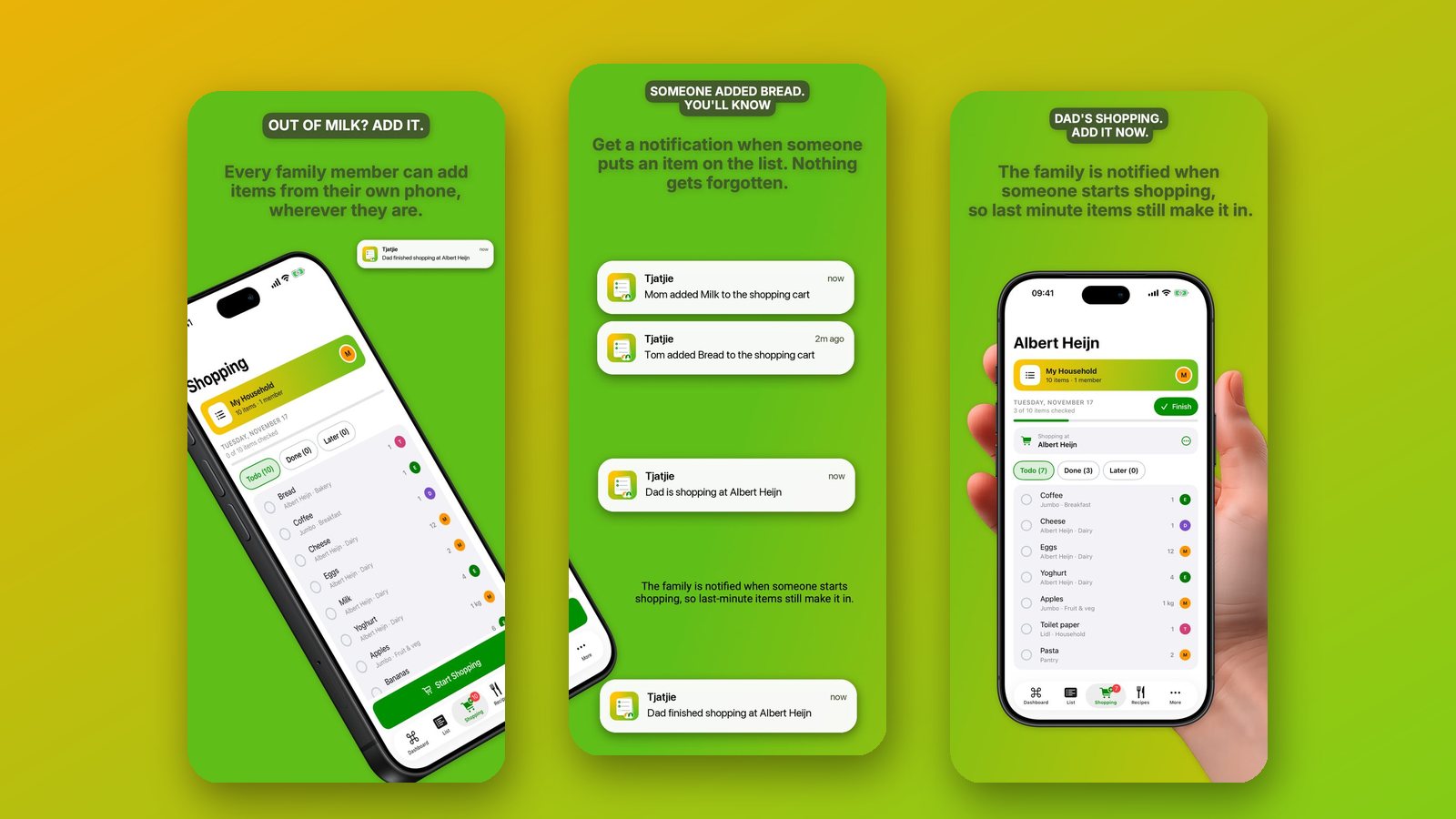
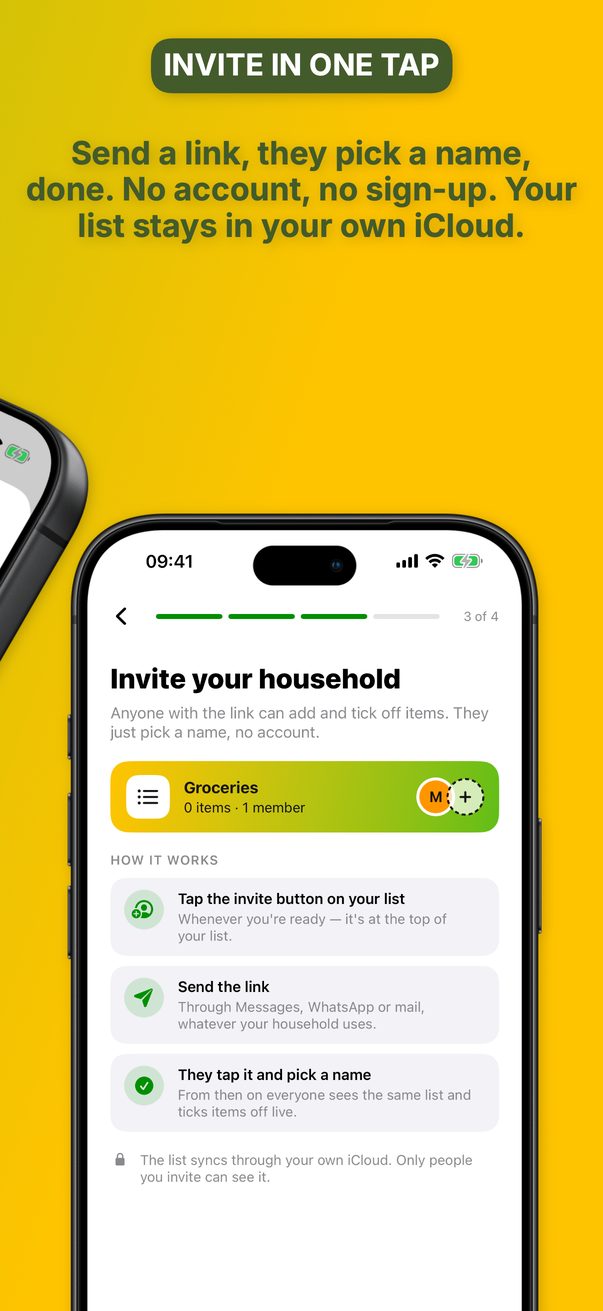
- One list, shared by link. Your shared list sits at the top of the shopping screen. Tap the + and send the link through Messages, WhatsApp or mail. Whoever taps it picks a name and is in. Everyone on the list can add items, edit them and tick them off.
- No sign-up. There is no account to create and no password. Tjatjie asks for your name and a color, and uses the iCloud account that is already on your device for sharing, syncing and notifications.
- The three notifications. The rest of the household gets a notification when someone adds an item, when someone starts shopping and picks the store, and when they finish. Your own actions never notify you.
- Who added what. Each item shows who added it, in that person’s color, so the shopper knows whom to ask which yoghurt was meant.
- Enough detail per item. An item can have a quantity, a note and a photo, and you can order the list by your route through the store.
- It works in the store. The list works without a connection. Shared lists catch up automatically when you are back online.
- More than the list. Loyalty cards are one tap away while you shop, a recipe puts its ingredients on the list, and receipt totals turn into monthly and yearly budget charts.
Where it does not fit: Tjatjie is not available on Android or the web, so it is for households on Apple devices. Sharing needs everyone to be signed in to iCloud. And the app is unlocked with a Tjatjie Pro subscription that you choose after installing. The App Store page has the details.
Frequently asked questions
What is the best way to share a grocery list with family?
The best way is one digital list that every household member can open and edit on their own phone, and that tells the others when something is added. If everyone has an iPhone, a shared list in Apple Reminders or a grocery list app does this. A paper list or a group chat works only as long as one person keeps copying items over.
How do I share a grocery list on iPhone?
Open the Reminders app, create a list and set its list type to Groceries, then tap the share button and invite your household by Messages, Mail or a link. Everyone who accepts sees the same list and can add items and tick them off. The people you invite need an Apple Account with iCloud.
Can I share a grocery list between iPhone and Android?
Yes, but not with the apps that come with the iPhone: Reminders and Apple Notes have no Android app. Use an app that exists on both systems, such as Google Keep or a cross-platform grocery list app like Bring!, AnyList, OurGroceries or Listonic.
Can two people edit a shared grocery list at the same time?
Yes. In a shared Reminders list, a shared note and in grocery list apps, everyone on the list can add items and tick them off, and the change appears on the other phones within moments. It is the main difference from a list sent as a message, which is a copy the sender can no longer change for you.
How do I get a notification when someone adds something to the list?
In Apple Reminders, open the shared list, tap the collaborate button and choose Manage Shared List to set the notifications for added and completed reminders. Grocery list apps usually have their own notification settings. In every case, notifications must also be allowed for that app in the iPhone’s Settings.
Does everyone need an account to share a grocery list?
Everyone needs some way to be recognised. For Reminders and Apple Notes that is the Apple Account already on the iPhone; for Google Keep it is a Google account. Many grocery list apps ask each person to sign up with an email address, while apps built on iCloud use the Apple Account that is already there.
Does a shared grocery list work without signal in the supermarket?
In most apps it does: the list is stored on the phone, so you can keep reading it and ticking items off without a connection. What you do not get while offline are the changes other people make. They arrive when the phone is connected again.
Which app shares a grocery list with the whole household on iPhone, iPad and Mac?
Tjatjie is a shared grocery list for iPhone, iPad and Mac. You invite your household with a link, everyone adds items from their own device, and the others get a notification when someone adds an item, starts shopping or finishes. It runs on the iCloud account already on the device, with no separate account to create. Tjatjie is not available on Android or the web.