Tickets · Going out together
How to Share Tickets With Friends and Family: PDF, Apple Wallet and Ticket Transfers
One person buys four tickets, and four people have to get through the gate. Here is how to give everyone their own ticket, whatever kind of ticket you have, and how to make sure the person who bought them is not the one everybody waits for.
By Nico Jansen, maker of TixVault··16 min read
🇳🇱 Lees dit artikel in het Nederlands →🇩🇪 Diesen Artikel auf Deutsch lesen →🇫🇷 Lire cet article en français →🇪🇸 Leer este artículo en español →🇮🇹 Leggi questo articolo in italiano →🇵🇹 Ler este artigo em português (Portugal) →🇧🇷 Ler este artigo em português (Brasil) →
The short answer
To share tickets, give each person their own ticket in the way that kind of ticket allows: send the PDF page with their seat, share the pass from Apple Wallet, or use the transfer function in the seller’s app. Never send the same barcode to two people, because only the first one to be scanned gets in.
The six steps:
It usually goes like this. One person in the group is fastest when the sale opens and buys four tickets. A PDF arrives in their inbox, or the tickets appear in an app on their phone. And from that moment the whole evening depends on one phone: the person who bought them has to be at the gate first, with a charged battery, a working network and enough patience to scan four codes.
Then someone is late, or comes straight from work, or wants to meet inside. The tickets have to be passed around, and that is where it goes wrong: a screenshot of the wrong page, the same PDF to everyone, a transfer that nobody accepted, a name on the ticket that does not match the ID.
This guide explains how to share tickets properly, for each kind of ticket you can have: a PDF, a pass in Apple Wallet, or a ticket inside an official app. It works for a concert, a match, a festival or the theatre.
Why does every person need their own ticket?
Every person needs their own ticket because every ticket has one barcode, and the scanner at the entrance lets that barcode in once. The first scan marks the ticket as used. A copy of the same code, shown a minute later by someone else, gets a red light.
That is why sharing tickets is really about splitting them. If you bought four tickets, you have four barcodes, and each of them should end up with exactly one person. Sending the same PDF with all four codes to everyone in the group works only as long as everyone shows the right page, and in a busy queue that is a gamble.
| What you do | What happens at the gate |
|---|---|
| Each person shows their own barcode | Everyone gets in |
| Two people show the same barcode | The first gets in, the second hears “already used” |
| One person shows all four tickets for the group | Works, but everyone has to go through together |
| Someone shows a screenshot of an app ticket with a refreshing code | Usually does not scan at all |
Some venues are more forgiving with a second scan than others, and staff can sometimes look up when and where a ticket was scanned. Do not count on it. One barcode, one person.
How do you share each kind of ticket?
How you share a ticket depends on what kind it is: a PDF or print-at-home ticket is sent as a file, a Wallet pass is shared from Wallet, and a ticket inside an official app is transferred with that app. The confirmation email usually tells you which one you have.
| Kind of ticket | How to share it | Does a copy scan? |
|---|---|---|
| PDF or print-at-home ticket | Send each person the page with their seat, as a file | Yes, if the barcode is sharp |
| Pass in Apple Wallet | Share Pass from Wallet, or send the “Add to Apple Wallet” link | The pass itself works; whether it can be shared is up to the issuer |
| Ticket in an official app (Ticketmaster, AXS, a club app) | Use Transfer in that app; your friend accepts with their own account | No, the barcode often refreshes every few seconds |
| Paper ticket | Hand it over | Only the original |
| Season card or membership card | Follow the club’s or venue’s rules for guests | Only the card or the official app |
Many tickets fit more than one row. A PDF often comes with an “Add to Apple Wallet” button as well, and a seller may offer both a PDF and an app ticket. Pick the one that is easiest to split, which is usually the PDF.
How do you send one ticket from a PDF with several tickets?
A PDF with several tickets usually has one ticket per page, so you send each person a copy of the PDF with only the page for their seat. Sending the whole file to everyone is the most common mistake, because it puts every barcode on every phone.
On iPhone or iPad
- Save the PDF from the email to the Files app (tap the attachment, then the share button, then Save to Files).
- In Files, touch and hold the PDF and choose Duplicate, once for each person.
- Open a copy and show the page thumbnails. Touch and hold each page that is not for this person and delete it, until only their page is left.
- Rename the copy after the person, for example “Concert - Anna.pdf”.
- Send each file with AirDrop, Messages, WhatsApp or email.
On a Mac
Open the PDF in Preview, show the thumbnails in the sidebar, and drag the page for one person to the desktop. Preview saves it as a separate PDF with just that page. Repeat for each page.
Which page is whose?
Four tickets in one PDF look almost the same. Before you split them, write down which seat, row and entrance is on which page, and decide who sits where. Then send each person the page with their name on your list, and tell them their seat and entrance in the message. It saves a conversation at the gate.
How do you share a ticket in Apple Wallet?
To share a ticket in Apple Wallet, open the pass, tap the button with the three dots and choose Share Pass, or hold your iPhone near the other person’s iPhone and tap Share. The second way needs both iPhones on iOS 17.2 or later and sends the pass with AirDrop.
- Not every pass can be shared. The company that made the pass decides. If you do not see Share Pass, the issuer has switched it off, usually because the ticket is personal or because they want you to use their transfer function.
- A shared pass is the same ticket. Sharing a pass gives the other person a copy of your barcode. Share one pass with one person, and keep the others.
- Several tickets, several passes. A booking for four people usually comes as four passes in a stack. Swipe to the right one before you share it.
- Or send the link. Some sellers let you forward the “Add to Apple Wallet” link for one ticket. Your friend opens it on their iPhone and adds that ticket to their own Wallet.
If you have only a PDF and want it in Wallet, I wrote a separate guide on adding a PDF ticket to Apple Wallet.
How does a ticket transfer in an official app work?
A ticket transfer moves the ticket from your account to your friend’s account: they accept it, they get a new barcode, and your copy stops working. It is the only way to share a ticket whose barcode refreshes in an app.
Ticketmaster’s SafeTix, AXS Mobile ID and most official club apps show a barcode that changes every few seconds. That stops screenshots and copies, and it also means you cannot simply send a picture to a friend. The app has a transfer function instead. With Ticketmaster it works like this:
- Open My Tickets in the app or on the website and choose the event.
- Tap Transfer, select the tickets you want to send, and enter your friend’s email address or phone number.
- Your friend gets an email or a text and accepts the tickets, signing in to their own Ticketmaster account or creating one.
- Once accepted, the tickets are in their account with a new barcode, and yours no longer work.
Three things to know. You can cancel a transfer only until it is accepted, so check the email address or phone number before you send. Your friend needs their own account, and it is easiest if you use the email address that account is on. And not every event allows transfers; the option can be missing or end at a set time before the event. AXS and most club apps work in much the same way, with their own names for the buttons.
What if the ticket has a name on it?
If a ticket is in a name, only that person may be allowed in, so change the name or transfer the ticket through the seller before you give it to someone else. Whether the name is checked differs per event, and you will not know until you are at the gate.
Personal tickets are common for big tours, festivals and football matches, and in some countries for large events by law. The ticket, the order or the seller’s terms will say so. Look for:
- A name printed on the ticket, sometimes with a date of birth.
- A line in the terms that ID will be checked at the entrance.
- A “name change” or “personalise ticket” option in your order on the seller’s site.
- A rule that tickets may only be resold or passed on through the seller’s own platform.
A name change is usually done in your order, sometimes only by the buyer, sometimes before a deadline and sometimes for a fee. Do it as early as you can: it is the step people forget, and the one stewards cannot fix on the night.
How do you keep tickets shared with a partner or family?
If you go out together often, keep your tickets in one shared place that everyone has on their own phone, instead of forwarding each ticket again. Then the ticket your partner bought last month is already on your phone tonight.
There are a few ways to do that:
- A shared folder in iCloud Drive. Save every ticket PDF in a folder you share with your household. Everyone sees the files in the Files app. Make sure each person downloads the file before the night, so it opens without network.
- A shared album or a family group chat. Quick, but tickets get lost between photos and messages, and a group chat is easy to forward by mistake.
- The official app, per person. For tickets that live in an app, everyone needs their own account, and the buyer transfers each ticket.
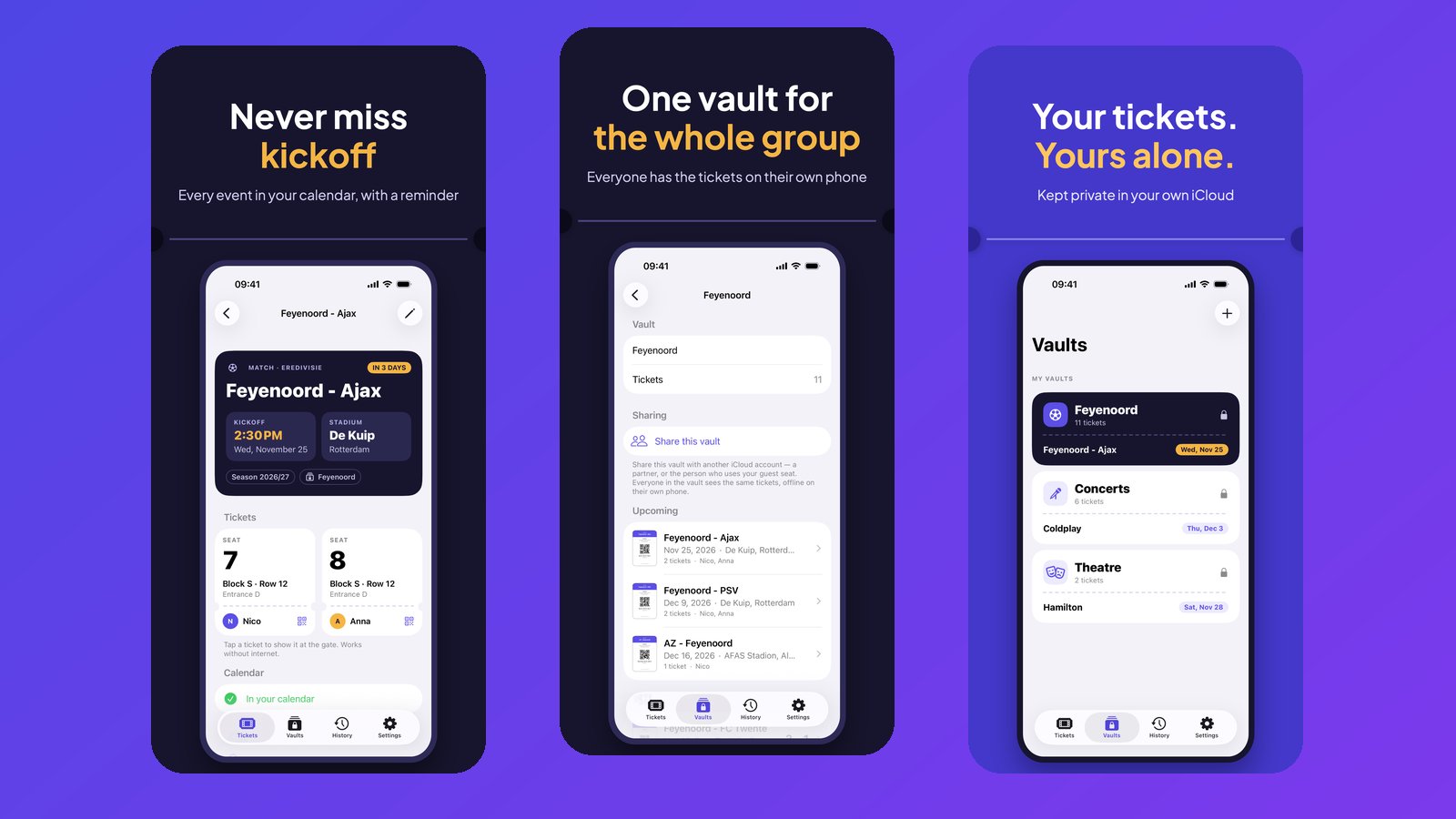
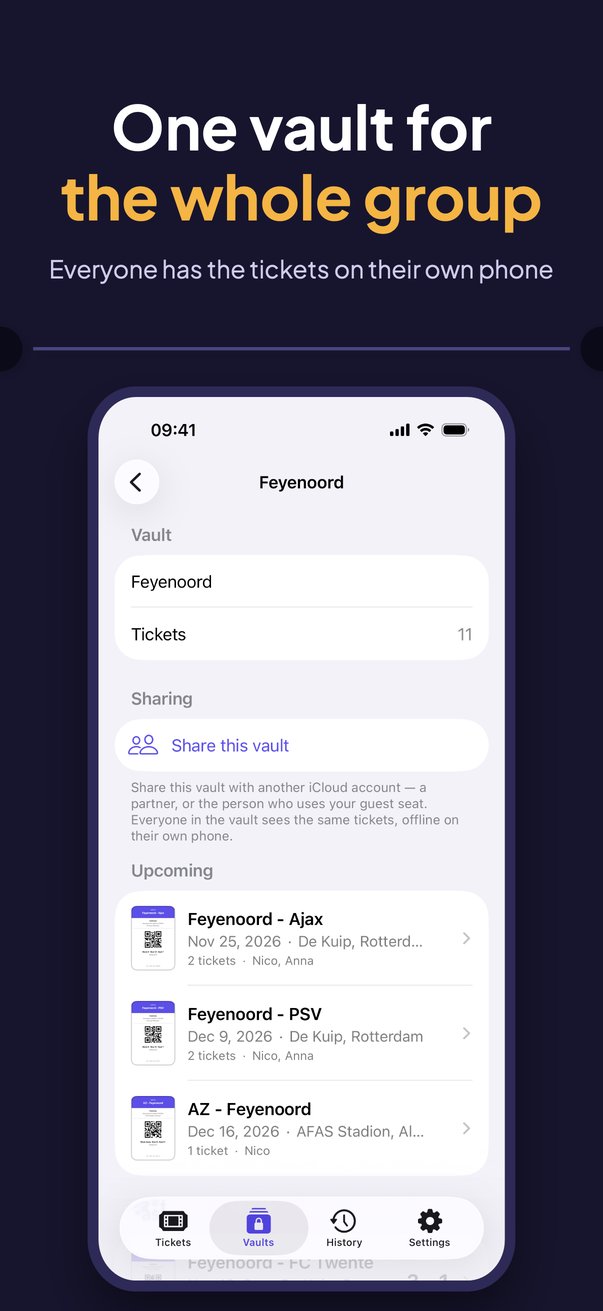
- A ticket app with shared vaults. An app such as TixVault keeps the tickets in a vault shared through iCloud, sorted by date, with each seat named after the person who uses it. More on that below.
With children, the simplest rule is the best one: keep their tickets on your own phone and go through the gate together.
What should you never do when you share a ticket?
Never post a readable barcode online, never send the same ticket to two people, and never pay a stranger for a ticket outside the seller’s official resale. All three end the same way: someone is at the gate with a code that has already been used.
- No barcodes on social media. A photo of a ticket with a readable code is a ticket. Crop or cover the code if you want to show where you are going.
- Careful with group chats. A ticket sent to a group of twenty can be forwarded by anyone in it. Send tickets one to one.
- Selling a ticket you cannot use? Use the seller’s own resale or a platform that reissues the barcode. A PDF bought from a stranger may already have been sold to someone else.
- Keep the original. Keep the confirmation email and the original PDF. If a ticket is refused at the gate, the ticket office will ask for them.
Sharing tickets with a group in 6 steps
Sharing tickets with a group takes six steps: know your ticket, check whether it is in a name, decide who sits where, give each person only their own ticket, send it a day early, and check that everyone can open it offline. The whole job takes ten minutes at home and saves half an hour at the gate.
1. Find out what kind of ticket you have
A PDF attachment, an “Add to Apple Wallet” button, or a message that the tickets are in an app? The table above tells you how each one is shared.
2. Check whether the tickets are in a name
Look for a name on the ticket, an ID rule in the terms, or a name-change option in your order. If the tickets are personal, change the names now.
3. Decide who uses which seat
Make a short list: seat, row, entrance, name. It decides which page or pass goes to whom, and it answers the question “where are we sitting?” before anyone asks it.
4. Give each person only their own ticket
Split the PDF into one file per person, share one Wallet pass per person, or transfer each app ticket to the person who uses it. One barcode, one person.
5. Send the tickets a day or more before the event
A transfer has to be accepted, an account has to be made, an app has to be updated. None of that should happen in a queue with no signal.
6. Check that everyone can open their ticket offline
Ask everyone to open their ticket once with airplane mode on. If it shows, it will show at the gate. Agree on a meeting point too, in case the network around the venue is full.
From one PDF to everyone’s phone with TixVault
I built TixVault for exactly this evening: tickets bought by one person, used by several, and needed at a gate where the network gives up. It runs on iPhone and iPad. This is how it handles the steps above:
- One ticket per page. Import the PDF from Files, a screenshot from Photos, or paste it from the clipboard. Each page with a barcode becomes its own ticket, and tickets for the same event stay together on one event.
- Every seat, named. TixVault reads the section, row, seat and entrance on the device, and you add who uses the seat. The event shows which guests are coming.
- Send one ticket as a file. Share PDF or Share ticket image hands the original to the share sheet, so AirDrop, Messages and Mail all work, also for someone without the app. Each ticket keeps only its own page, so you send only that seat.
- Or share the whole vault. Share a vault through iCloud, by invitation, and everyone in it has the same tickets on their own iPhone or iPad, including tickets added later. The owner sees who is in it and can remove someone or stop sharing at any time.
- Works without internet. The ticket, the barcode and the original file are stored on the device. Tap Show barcode and the screen goes to full brightness with nothing but the code.
- In everyone’s calendar. One tap creates the calendar event with the venue as location and every seat, entrance and guest in the notes, with an alarm beforehand.
Your tickets are stored on your device and in your own iCloud account. There is no niApps account and there are no ads, and a shared vault goes only to the people you invite. Everyone you invite needs an iPhone or iPad with TixVault and their own iCloud account.
Where it does not fit: TixVault is for PDF and print-at-home tickets and screenshots of tickets with a fixed barcode. Tickets whose barcode refreshes in an official app, such as Ticketmaster SafeTix, AXS Mobile ID and most club apps, cannot be stored by any other app as a working ticket; share those with the transfer function in that app. And a shared vault does not change who a ticket belongs to: for a personal ticket, the name change still goes through the seller.
Frequently asked questions
Can two people use the same ticket?
No. Each ticket has one barcode, and at most venues the scanner accepts it once. If you send the same ticket to two people, whoever is scanned first gets in and the second person hears that the ticket has already been used.
How do I send a PDF ticket to a friend?
Send the file itself, by AirDrop, Messages, WhatsApp or email, so your friend can save it on their own phone. If the PDF holds several tickets, send each person only the page with their seat, because every page has its own barcode.
Can I send a screenshot of my ticket?
Only if the barcode is fixed. A screenshot of a PDF or print-at-home ticket scans if it is sharp. A ticket in an official app whose barcode refreshes every few seconds, such as Ticketmaster SafeTix, does not work as a screenshot; use the transfer function in that app instead.
How do I transfer a Ticketmaster ticket?
In your Ticketmaster account, open the event, choose Transfer, pick the tickets and enter your friend’s email address or phone number. Your friend accepts with their own Ticketmaster account and then gets a new barcode; your copy stops working. You can cancel a transfer only until it is accepted.
Can I share a ticket from Apple Wallet?
Often, yes. Open the pass, tap the button with the three dots and look for Share Pass, or hold your iPhone near your friend’s iPhone (both on iOS 17.2 or later) and tap Share. The issuer of the pass decides whether it can be shared, so the option is not there for every ticket.
What if the ticket has my name on it?
Then check the seller’s rules before you give it away. Some events check ID at the entrance and only let in the person named on the ticket. Many sellers offer a name change or an official transfer, sometimes with a deadline or a fee; use that rather than hoping the name is not checked.
Is it safe to post a picture of my ticket?
No. Anyone who can read the barcode in the picture can make a copy, and whoever is scanned first gets in. Cover or crop the barcode before you show a ticket online, and only send a ticket to people you know.
Which iPhone app keeps a group’s tickets on everyone’s phone?
TixVault is a ticket wallet and event diary for iPhone and iPad. It splits a PDF with several tickets into one ticket per page, each with its own seat and the name of the person using it, and Share PDF sends one ticket as a real file. Share a vault through iCloud, by invitation, and everyone in it has the same tickets on their own iPhone or iPad, offline at the gate. It is for PDF and print-at-home tickets; barcodes that refresh inside an official ticketing app cannot be stored as a working ticket.