Events · Tickets on iPhone
How to Add a PDF Ticket to Apple Wallet: 6 Ways to Keep Tickets on iPhone
The ticket arrived as a PDF, and Wallet will not take it. Here is what Wallet does and does not accept, what changed with iOS 27, and five other ways to have the barcode on your screen at the gate, with or without signal.
By Nico Jansen, maker of TixVault··16 min read
🇳🇱 Lees dit artikel in het Nederlands →🇩🇪 Diesen Artikel auf Deutsch lesen →🇫🇷 Lire cet article en français →🇪🇸 Leer este artículo en español →🇮🇹 Leggi questo articolo in italiano →🇵🇹 Ler este artigo em português (Portugal) →🇧🇷 Ler este artigo em português (Brasil) →
The short answer
You cannot open a PDF ticket in Apple Wallet directly: Wallet holds passes that the ticket seller issues through an “Add to Apple Wallet” button, not PDF files. If your ticket has no such button, make a pass from its barcode with Create a Pass in iOS 27, or skip Wallet and save the PDF on the iPhone itself, in the Files app or in a ticket app, so it opens without internet at the gate.
The five steps:
You know the moment. The queue moves towards the gate, you take out your phone, and the ticket is not where you thought it was. It is in a confirmation email from three months ago. Or in Downloads. Or it is a screenshot somewhere between the holiday photos. And the stadium has forty thousand phones in it, so the inbox will not load.
The obvious place for a ticket is Wallet. Boarding passes go there, so why not the PDF for Saturday’s match? You open the PDF, tap the share button, and Wallet is not in the list.
This guide explains why, and what to do about it. It covers the six ways to keep a ticket on an iPhone, which ones still work when there is no signal, and the one kind of ticket that none of them can hold.
Can you add a PDF ticket to Apple Wallet?
No, not as a PDF: Apple Wallet stores passes, which are small signed files that a ticket seller, airline or shop creates for Wallet, and a PDF is not one of them. That is why Wallet does not appear when you share a PDF, and why renaming the file does not help.
A pass is more than a picture of a ticket. It is a file of the type .pkpass, made and digitally signed by the company that issued it. The signature tells Wallet who the pass comes from. It also lets the issuer update the pass later, for example when the start time changes. A PDF is a document for reading and printing. It has no such signature, so Wallet has nothing to check.
So there are three routes into Wallet, and only one of them starts from your PDF:
- The seller gives you a pass. You tap “Add to Apple Wallet” in the email, on the order page or in the seller’s app. This is the route Wallet was built for.
- You make a pass yourself. Since iOS 27, Wallet has Create a Pass, which builds a pass from a photo or screenshot of a barcode, or from a template. It copies the code on your ticket. It does not import the PDF.
- A converter makes one for you. Third-party apps and websites read the barcode from a PDF and produce a pass. They existed long before iOS 27 because so many people ran into this.
If none of those fits, the ticket does not have to be in Wallet at all. A scanner at the gate reads a barcode. It does not care which app is showing it.
What are the ways to keep a ticket on your iPhone?
There are six ways to keep a ticket on an iPhone: the seller’s pass in Wallet, a pass you make yourself with Create a Pass, the PDF in the Files app, a screenshot in Photos, the seller’s own app, and a ticket wallet app. They differ in three things: which tickets they accept, whether they work without a connection, and how much of the ticket they keep.
| Way | Which tickets | Works without internet? | What it keeps | Best for |
|---|---|---|---|---|
| Seller’s pass in Wallet | Only tickets with an “Add to Apple Wallet” button | Yes | The pass as the seller designed it | Any ticket that offers it |
| Create a Pass in Wallet (iOS 27) | Tickets with a fixed barcode or QR code | Yes | The code, plus the fields you fill in | One ticket with a single code |
| PDF in the Files app | Any PDF | Yes, if the file is on the iPhone | The complete original | One or two tickets a year |
| Screenshot in Photos | Tickets with a fixed barcode | Yes | One picture, lost among the others | A quick backup |
| The seller’s own app | Tickets from that seller, including refreshing barcodes | Depends on the app | The live ticket | Tickets that exist only in that app |
| Ticket wallet app | PDF and screenshot tickets from any seller | Depends on the app | Depends on the app | Several events a year, or tickets for a group |
Leaving the ticket in your email is missing from this table on purpose. It is where most tickets live, and it is the weakest option. Finding it means searching, and an attachment you never opened may not have been downloaded to the phone yet. Mail is where the ticket arrives. It should not be where it stays.
A printout is not in the table either, because this guide is about the phone. It remains the backup that needs no battery. For an event you travelled far for, a folded sheet in your coat is a small effort.
Where do you find the “Add to Apple Wallet” button?
The “Add to Apple Wallet” button is in the confirmation email, on the order page of the seller’s website or in the seller’s app, and it is only there when the seller has built Wallet passes. It is a black button with the Wallet icon. Look in these places, in this order:
- The confirmation email, usually near the bottom, below the order details.
- The email that delivers the tickets themselves, if that is a separate one. Many sellers send the tickets days or weeks after the order.
- Your account on the seller’s website, under your orders or tickets, opened in Safari.
- The seller’s app, on the ticket itself.
When you tap the button, Wallet shows a preview of the pass and you tap Add. From then on the pass is stored on the iPhone and opens without a connection. With a pass that carries a barcode, Wallet turns the screen brightness up while it is shown.
No button anywhere? Then the seller does not issue passes for this event. That is common with smaller venues, amateur and lower-league clubs, festivals, theatres and resale platforms. Their ticket is a PDF, often called print-at-home. It is a complete, valid ticket. It only needs a different home on your phone.
How does Create a Pass in iOS 27 work?
Create a Pass, new in iOS 27, makes a Wallet pass out of a barcode or QR code: either automatically from a photo or screenshot, or by hand from a template. Apple designed it for loyalty and membership cards that have a code but no digital pass, and it works for a ticket with a fixed code too.
The automatic way, from your PDF ticket:
- Open the PDF and zoom until the whole barcode is on the screen, sharp and uncropped.
- Take a screenshot.
- Open the screenshot in Photos. When the iPhone recognises the code, it offers to add a pass to Wallet.
- Check the fields, add the event name and date, and save the pass.
This route uses Apple Intelligence. According to Apple it needs an iPhone 15 Pro or later, and Apple Intelligence has to be available in your language and region and switched on.
The manual way works without it. Open Wallet, tap the add button, choose Create a Pass, then Create Pass Manually, and pick one of the three templates: standard, membership or event. You fill in the fields yourself and choose a color.
| Seller’s pass | Pass you create yourself | |
|---|---|---|
| Who makes it | The ticket seller | You, on your iPhone |
| Needs | A seller that supports Wallet | iOS 27 |
| Contents | Everything the seller put in | The code and what you typed |
| Updates when the event changes | Can, if the seller sends them | No |
| The original PDF | Not included | Not included |
| Refreshing barcodes | Supported by some sellers | Do not work |
Three things to know before you rely on it:
- It is a copy of the code, not of the ticket. The seat, the entrance, the conditions and the name on the ticket are only in the pass if you type them in. Keep the PDF.
- One pass per code. A PDF with four tickets has four codes. That is four screenshots and four passes.
- Codes that expire do not survive. Apple says so itself: some barcodes rotate and expire, and a pass made from one of those will not work.
Before iOS 27 the same job was done by converter apps and websites, and they still exist. If you use one, find out where the conversion happens. A service that converts on its own servers receives your ticket, and the barcode on it is the proof of entry. Whoever has the code has the ticket.
How do you save a PDF ticket so it opens offline?
To make a PDF ticket open without internet, save it in the Files app under “On My iPhone”, or in iCloud Drive with Keep Downloaded switched on for that file. Both put the whole file on the device, which is the only thing that counts when the network at the venue gives up.
- Open the PDF from the email or the website.
- Tap the share button and choose Save to Files.
- Pick On My iPhone and a folder, for example one called Tickets. Tap Save.
- Prefer iCloud Drive, so the file is on your iPad too? Save it there, then touch and hold the file in Files and choose Keep Downloaded. That option arrived with iOS 18.
- Open the Files app, find the ticket and open it once to see that it is complete.
The difference between the two places matters. On My iPhone is storage on the phone itself. The file is always there, and it is only there. iCloud Drive keeps the file in iCloud and puts a copy on each device, but the iPhone may remove that copy to free up space unless you tell it to keep the file downloaded.
What Files does not give you is order. A ticket saved under the name the seller gave it, something like order_48213_final.pdf, is not easy to find in June. Rename the file when you save it: the date first, then the event. “2026-10-25 Feyenoord - Ajax” sorts itself.
Will a screenshot of a ticket scan at the gate?
A screenshot scans when the ticket has a fixed barcode, as PDF and print-at-home tickets do, and it does not scan when the barcode refreshes inside the seller’s app. So the first thing to find out about any ticket is which of the two kinds it is.
A fixed barcode is printed once and stays the same until the event. It is what a PDF ticket carries: a QR code, a square Aztec code, or a row of bars. A scanner reads it from paper, from a PDF on a screen and from a screenshot alike.
A refreshing barcode is made to stop exactly that. Ticketmaster’s SafeTix is the best-known example: by Ticketmaster’s own description, the barcode refreshes every 15 seconds. A screenshot holds a code that has already expired by the time you reach the scanner. AXS Mobile ID and many official club apps work in a similar way. The purpose is to stop a ticket being copied and sold several times.
| Fixed barcode | Refreshing barcode | |
|---|---|---|
| Where you see it | PDF and print-at-home tickets | Inside the seller’s or club’s app |
| How to recognise it | The code never changes | A moving line, or a code that changes while you watch |
| Screenshot | Scans | Does not scan |
| Saving it in another app | Possible | Not possible |
| Passing it on | Send the file | Transfer it in the seller’s app |
| Without signal | Fine once it is saved on the phone | Open the app before you leave home |
For a ticket with a refreshing code there is no workaround, and you should distrust anyone who offers one. Use the seller’s app, or the seller’s own Wallet pass where it is offered, and load the ticket while you still have a good connection.
For a fixed code a screenshot works, but as a backup, not as a system. A screenshot is one picture in a library of thousands. It has no name, it is not attached to a date, and Photos may keep only a reduced version on the phone when storage is tight. If a screenshot is all you have, mark it as a favourite so you can find it.
How to get a PDF ticket ready for the gate in 5 steps
Getting a PDF ticket ready takes five steps: check the kind of ticket, look for the Wallet button, save the ticket on the phone, test it in airplane mode, and hand out the tickets before you leave. Do it on the day the ticket arrives. It takes five minutes then, and it cannot be done in the queue.
1. Check what kind of ticket you have
Open it and look at the code. A PDF you can download has a fixed code, and everything in this guide applies. A code that only shows inside an app, with a line moving across it, is the refreshing kind. That ticket stays in its app, and the only preparation is to open the app at home and check you are signed in.
2. Look for an “Add to Apple Wallet” button
Check the emails, the order page and the app. If the button is there, use it: the seller’s pass is the best version of the ticket you can have in Wallet. Download the PDF as well if one is offered. A second copy of a ticket has never hurt anyone.
3. Save the ticket on the phone itself
No button? Then choose one home for the ticket and put it there today. Files under On My iPhone, a pass you create in Wallet, or a ticket app that stores the file on the device. Which one matters less than the rule behind it: the ticket must be on the phone, not behind a login or a download.
4. Test it in airplane mode
This is the step people skip, and the one that tells you the truth. Turn on airplane mode, lock the phone, unlock it, and open the ticket the way you will at the gate. Count the seconds. If the barcode is on the screen within ten, you are done.
5. Send every person their own ticket before you leave
If you bought for more than one person, give each of them their own ticket while you are still at home, with Wi-Fi and time. Send the file itself, by AirDrop or as an attachment. A group that arrives with all its tickets on one phone goes in together or not at all.
What goes wrong at the gate, and how do you prevent it?
Most ticket trouble at the gate has one of five causes: no signal, a ticket that cannot be found, a screen that is too dark, an empty battery, or all the tickets on one phone. Each of them has a fix that takes a minute at home.
| What goes wrong | Why | What prevents it |
|---|---|---|
| The ticket will not load | Thousands of phones share the same mobile network around a venue. | Save the ticket on the phone and test it in airplane mode. |
| You cannot find the ticket | It is in Mail, Downloads or Photos, under a name you do not remember. | Give every ticket one fixed home, named by date and event. |
| The scanner does not read the code | The screen is dim, or the code is small on the screen. | Turn the brightness all the way up and zoom in until the code fills the width. |
| The phone is empty | A day of photos, maps and messages before the evening starts. | Charge before you leave, and take a printout for events that matter. |
| The group is stuck | One person holds every ticket and is still on the train. | Send each person their own ticket in advance. |
| The wrong ticket is scanned | A PDF with several pages, and you show the same page twice. | Know which page is whose seat before you reach the gate. |
About brightness: a scanner reads the contrast between the dark and light parts of a code. A screen at half brightness under floodlights gives it very little to work with. Wallet raises the brightness for you when it shows a barcode pass. A PDF in Files and a picture in Photos do not, so do it yourself from Control Center before you reach the front of the queue.
A cracked screen can spoil a scan too, if the crack runs through the code. Move the code to an undamaged part of the screen by zooming and dragging.
How do you handle tickets for a group?
For a group, split the order into one ticket per person, write down who has which seat, and send each person their own file before the day of the event. One order for four people usually arrives as one PDF with four pages, and that is where the confusion starts.
- Find out what you have. One PDF with a page per ticket, or separate files? Each page has its own code and its own seat.
- Decide who sits where. Do it at home. A code is valid once, so two people showing the same page means the second is refused.
- Send files, not forwards. A forwarded email is another inbox to search in. AirDrop or a message with the PDF attached puts the file on the other phone.
- Keep the full set yourself. Someone will arrive with an empty battery. Whoever bought the tickets keeps all of them on their own phone as well.
- Check the rules for passing tickets on. Some events put a name on the ticket and check it. The seller’s conditions say whether a ticket may be given to someone else and how.
Season tickets are the same problem every other week. The seats stay the same and the guests change, and before every home match someone asks who is coming and who has the tickets. It helps to note the guest on the ticket itself, so the answer is in one place.
From inbox to gate with TixVault
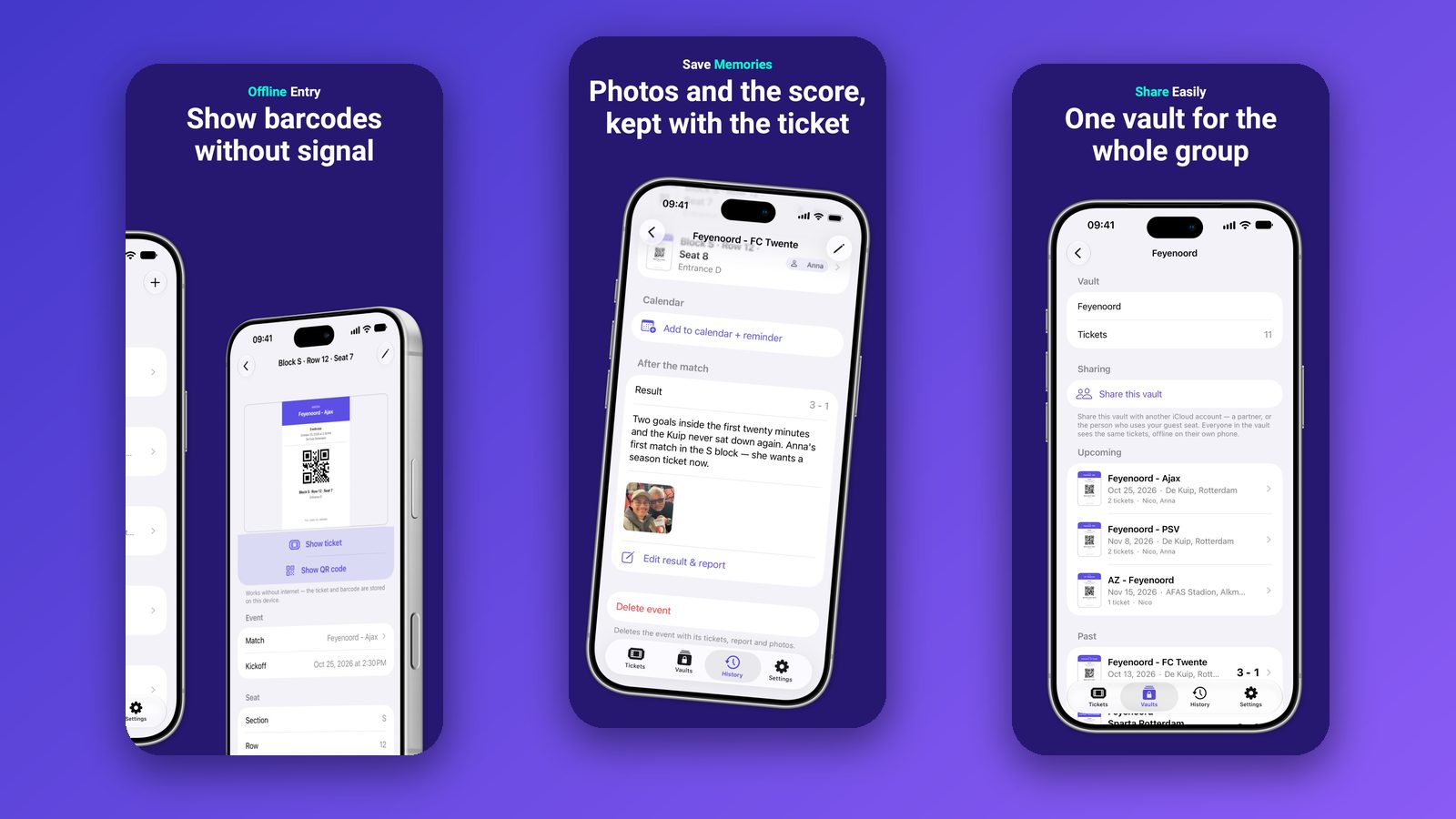
I built TixVault for the tickets this guide is about: the PDFs and screenshots that have no Wallet button and end up scattered across Mail, Files and Photos. It is a ticket wallet for iPhone and iPad, and this is how it handles the steps above:
- Import from where the ticket is. Pick the PDF from Files, a screenshot from Photos, or paste it from the clipboard. TixVault finds the barcode and reads the event, date, venue, section, row, seat and entrance, all on the device.
- You check the scan. Nothing enters the vault unread. You see what was recognised, correct a field if needed, and choose the type: match, concert, festival, theatre or other.
- One list, next event on top. Every upcoming event sits in a single list, soonest first. That is the fixed home from step 3.
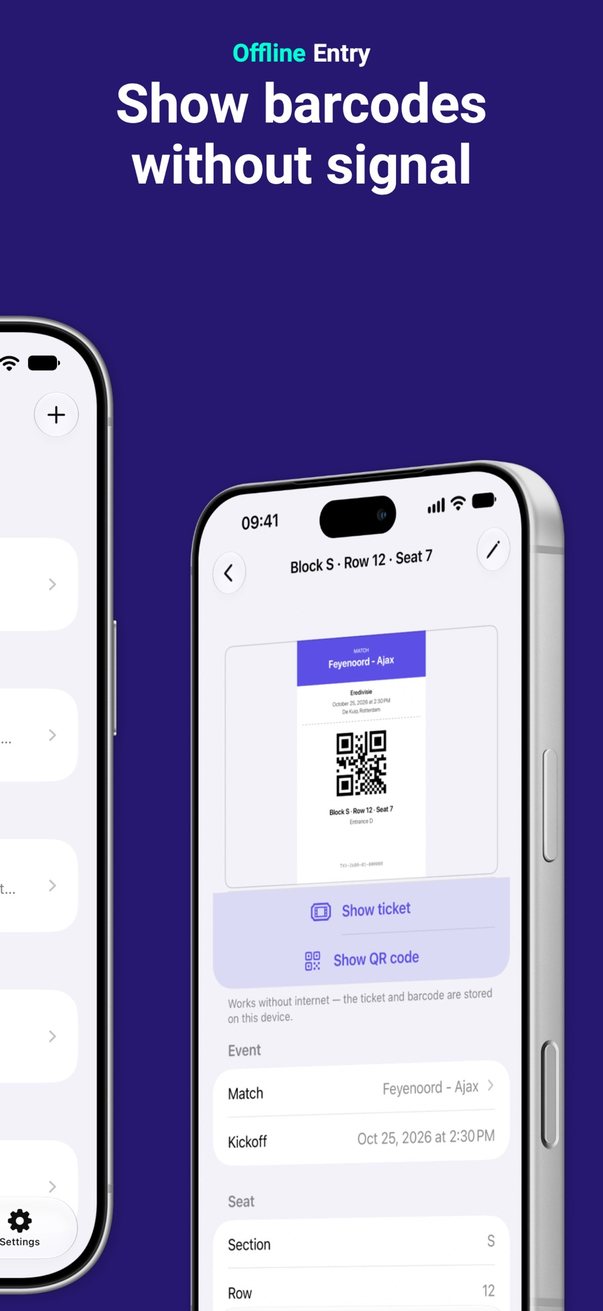
- The barcode without internet. The ticket, the barcode and the original file are stored on the device. Tap Show barcode and the screen goes to full brightness and shows nothing but the code.
- Every seat of a group order. A PDF with several tickets becomes one ticket per page, together on one event, each with its own section, row, seat, entrance and guest name.
- A vault you share. Share a vault through iCloud and everyone in it has the same tickets on their own phone, offline. For someone without the app, the original PDF goes out through the share sheet as a real file.
- The original, always. Every ticket keeps its PDF or screenshot, so you can show it exactly as it was sent, or print it.
- And afterwards, a diary. Three hours after the start, the event moves to History. Add the result, a few lines and the photos, and the night is kept with its ticket.
Where it does not fit: TixVault is for PDF and print-at-home tickets. Barcodes that refresh inside an official ticketing app cannot be stored, by TixVault or by any other app. And it runs on iPhone and iPad only, with no Android or web version.
Frequently asked questions
Can you add a PDF ticket to Apple Wallet?
Not directly. Wallet does not open PDF files; it holds passes that the ticket seller issues through an Add to Apple Wallet button. Since iOS 27, Create a Pass in Wallet can make a pass from a photo or screenshot of the barcode on your ticket, or from a template you fill in yourself. That pass holds the code and the fields you enter, not the PDF.
Why is there no Add to Apple Wallet button on my ticket?
Because the ticket seller has to build Wallet passes, and many do not. Smaller venues, clubs, festivals and resale sites often send only a PDF. Without the seller’s pass you can still save the PDF on the iPhone, make your own pass with Create a Pass in iOS 27, or keep the ticket in a ticket app.
Will a screenshot of my ticket scan at the gate?
A screenshot of a PDF or print-at-home ticket normally scans, because its barcode is fixed. A screenshot of a ticket whose barcode refreshes inside the official app, such as Ticketmaster SafeTix, does not scan: the code in the picture is out of date within seconds.
How do I open a ticket on my iPhone without internet?
Save it on the device before you leave. In the Files app, a PDF under On My iPhone opens with no connection, and a file in iCloud Drive does too once you have chosen Keep Downloaded. A pass in Wallet and a screenshot in Photos are also stored on the phone. An email attachment you have not opened may still need a download.
Where is the best place to save a PDF ticket on an iPhone?
A place that keeps the file on the phone and that you can find in ten seconds. For one ticket, a folder in the Files app under On My iPhone does the job. If you buy tickets all year, a ticket app that holds them in one list with the next event on top saves the search.
Can I send a ticket to someone I am going with?
Yes, if it is a PDF or print-at-home ticket: share the file by AirDrop, Messages or Mail, one ticket per person. A pass in Wallet can be shared only when the issuer allows it, and a ticket with a refreshing barcode has to be transferred inside the seller’s own app.
Is it safe to use a PDF-to-Wallet converter?
It depends on where the conversion happens. A website or app that converts on its own servers receives your ticket, including the barcode that is the proof of entry. Check what the maker says about where the file goes before uploading one, and keep the original PDF as a fallback in case the pass does not scan.
Which app keeps PDF tickets on an iPhone and shows the barcode offline?
TixVault is a ticket wallet for iPhone and iPad. It imports a ticket as a PDF from Files, a screenshot from Photos or from the clipboard, reads the barcode and the event details on the device, and shows the barcode full screen without internet at the gate. Tickets sync through your own iCloud and a vault can be shared with your household. It is for PDF and print-at-home tickets; barcodes that refresh inside an official ticketing app cannot be stored.