Energy · Sibber 2.18
Tibber Prices on Your iPhone Home Screen: Sibber’s New Price Clock and Widgets Explained
Sibber has a new look, rebuilt around one question: when is power cheapest? Here is how to read the new price clock, which widget fits where, and how to get your Tibber prices onto your Home Screen, Lock Screen and Apple Watch.
By Nico Jansen, maker of Sibber··17 min read
🇳🇱 Lees dit artikel in het Nederlands →🇩🇪 Diesen Artikel auf Deutsch lesen →🇫🇷 Lire cet article en français →🇪🇸 Leer este artículo en español →🇮🇹 Leggi questo articolo in italiano →🇧🇷 Ler este artigo em português (Brasil) →🇵🇹 Ler este artigo em português (Portugal) →
The short answer
To see your Tibber prices at a glance on iPhone, add a Sibber widget to your Home Screen or Lock Screen: it shows the current price, the next 24 hours as a colour strip or a dial, and the cheapest two hours ahead. Inside the app, the new price clock shows the same 24 hours as a dial with now at the top, so one look tells you whether to start the dishwasher now or wait.
The five steps:
If you are on a dynamic Tibber contract, the price of your electricity changes every hour, or every quarter of an hour. The question you ask yourself is always the same: is now a good moment, or should I wait? Until now Sibber answered that with a graph and a list of prices. Both are still there, but they are no longer the first thing you see.
With version 2.18 I rebuilt Sibber around that one question. The home screen is now a price clock, the widgets and the Apple Watch use the same dial and the same colours, and the side menu has made way for four tabs. This article explains what each part shows, how to read it, and how to put it where you will actually see it.
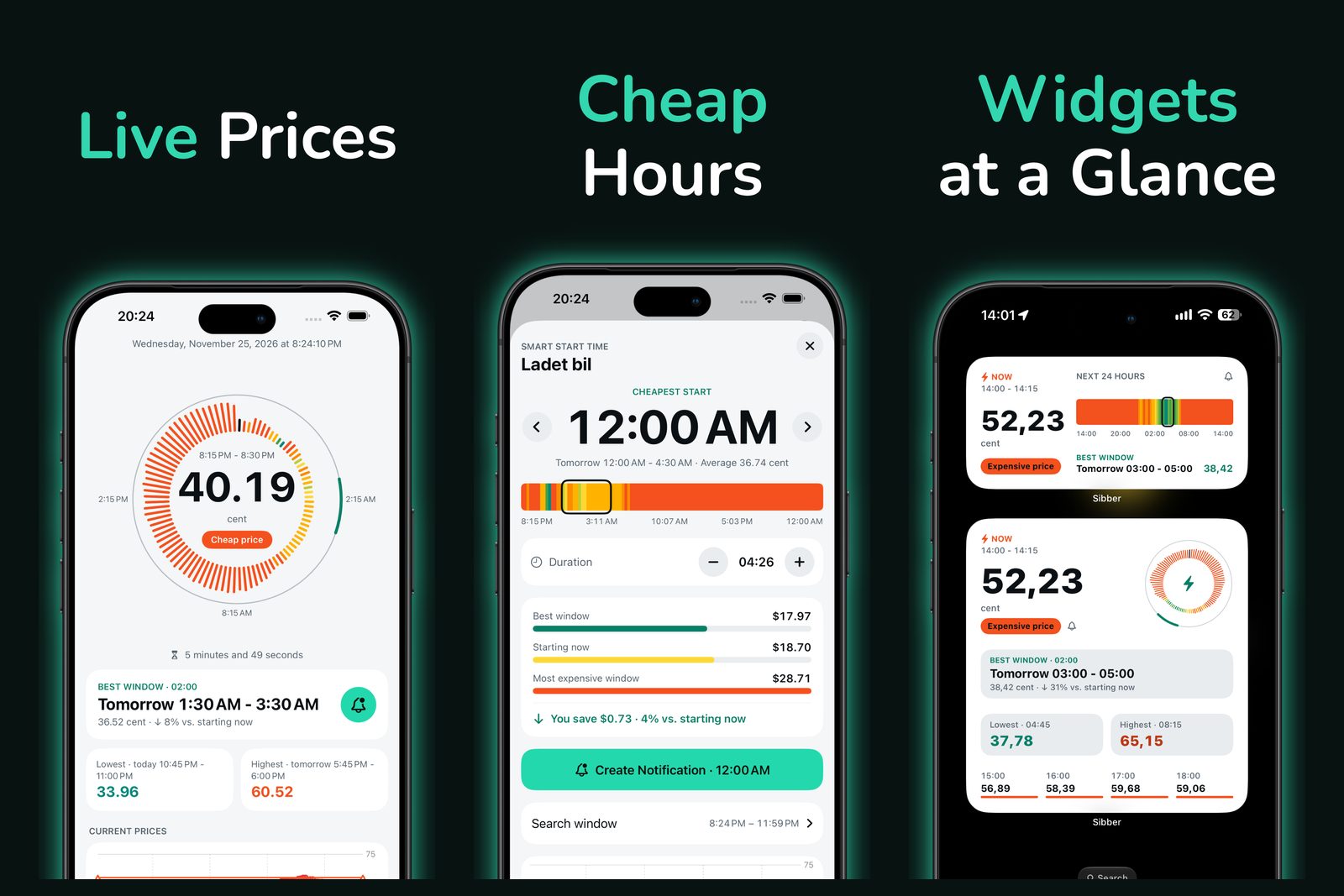
What changed in Sibber’s new look?
Sibber 2.18 replaces the graph-first home screen with a price clock, the side menu with four tabs, and the widgets and Apple Watch app with versions that use the same dial and colours. The prices, the alarms and your activities are the same as before; what changed is how they are shown and where you find them.
| Part | Before | Now |
|---|---|---|
| Home screen | Price graph and list of slots | The price clock, the best window, and the day’s cheapest and highest slot; the graph and list are below |
| Navigation | A side menu | Four tabs: Now, Plan, Notifications, More |
| Planning an activity | Pick a start time from a list | Drag the window along a price strip |
| Widgets | Current price and the day’s prices | Price dial, colour strip of the hours ahead, best window and alarm status |
| Apple Watch | Current price and the next few prices | The same dial, a 24-hour strip and a summary of the day |
| First start | Setup screens | A new welcome tour that ends with connecting your Tibber account |
Two smaller changes came along. V2C charging timers now end exactly on a price block, and Sibber works on iPhone Duo, adapting its layout as you fold and unfold it.
How does the price clock work?
The price clock is the next 24 hours drawn as a dial: now is at the top, time runs clockwise, and every price slot is a bar whose length and colour show how expensive it is. A short green bar is a cheap slot, a long orange-red bar an expensive one. The bar at the very top, drawn in the text colour, is the slot you are in now.
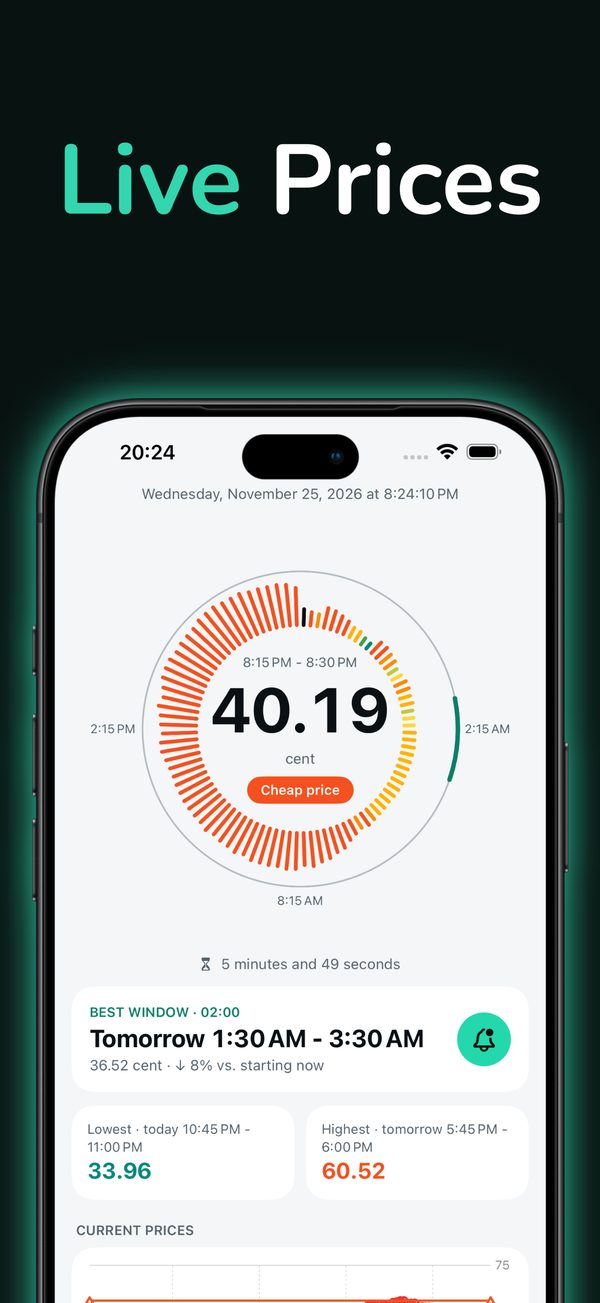
Each part of the clock has one job:
| What you see | What it means |
|---|---|
| The top of the dial | Now. The dial always starts at the current slot, not at midnight. |
| One bar per slot | 24 bars with hourly prices, 96 with 15-minute prices, depending on your setting. |
| Bar length | The price compared with the lowest and highest of the next 24 hours. The shortest bar is the cheapest slot, the longest the most expensive. |
| Bar colour | From green for cheap to orange-red for expensive, the same colours as in the widgets and on the watch. |
| Three time labels | The times 6, 12 and 18 hours from now, at the right, bottom and left of the dial. |
| The centre | The current slot’s time, the price you pay now, the unit (cent or öre) and a label such as Cheap price or Expensive price. |
| The green arc on the rim | The best window: the cheapest two hours in a row ahead. |
| The hourglass line below | How long until the next price slot starts. |
Reading it takes one glance. Look at the top for now, then follow the dial clockwise to see what is coming. If the bars right after the top are long and orange and they get shorter and greener further round, waiting pays. If the top is already short and green, start now.
The bar lengths are relative. They compare the slots of the next 24 hours with each other, so on a flat day with little difference between cheap and expensive, the dial still shows long and short bars. The price in the centre and the label underneath tell you whether the level itself is high or low.
Before Tibber publishes tomorrow’s prices, typically around 13:00, Sibber only knows the prices up to midnight. In the morning the dial is therefore only partly filled. After the new prices arrive it fills up to a full 24 hours ahead.
Why a clock instead of a bar chart?
A clock shows time the way you already think about it: “at two”, “after midnight”, “in six hours”, with now in a fixed place. A bar chart from midnight to midnight puts now somewhere in the middle, a little further to the right every hour, and you have to find it before you can read anything.
The dial turns that around. Now is always at the top, and everything you can still do something about lies clockwise from it. Slots that are already over are not on the dial at all. The same shape then works at every size: a full screen in the app, a circle in a small widget, and a ring on your watch.
The detailed graph and the full list of slots are still on the Now tab, below the clock, for when you want the exact numbers.
What is the best window?
The best window is the cheapest stretch of two hours in a row ahead of you, shown on the card under the clock and as the green arc on the rim. The card gives the start and end time, the average price in that window, and how much cheaper it is than starting now, as a percentage.
Tap the card and Sibber opens the alarm sheet for the start of the window, so you get a notification when it begins. If the window starts right now, the card says so and the arc disappears from the dial: there is nothing to wait for.
Two hours fits the jobs most people move around: a dishwasher, a washing machine, a dryer. For a job with a different length, such as charging the car, use an activity on the Plan tab: Sibber then looks for the cheapest block of exactly that length.
Under the best window are two tiles with the cheapest and the highest slot of the period, each with its time. Tapping one of them also opens the alarm sheet, for that slot.
Where did the menu go?
The side menu is gone; four tabs at the bottom of the screen replace it: Now, Plan, Notifications and More. Everything is one tap away instead of two.
- Now is the price clock, the best window, the cheapest and highest slot, and below them the graph and the list of all slots.
- Plan holds your activities: the washing machine, the dishwasher, charging the car. Each card shows its cheapest start on a price strip.
- Notifications lists your active alarms at the top, the cheapest slots below them, the switch for automatic alarms on negative prices, and then all time slots.
- More has everything else that used to be in the menu, such as Settings, Support and What’s New.
How do you plan an activity by dragging?
When you plan an activity, Sibber shows the search window as a price strip with the cheapest start boxed; drag the box along the strip to pick a different start time. The strip uses the same colours as the clock, so you see at once whether the box sits in a green or an orange stretch.
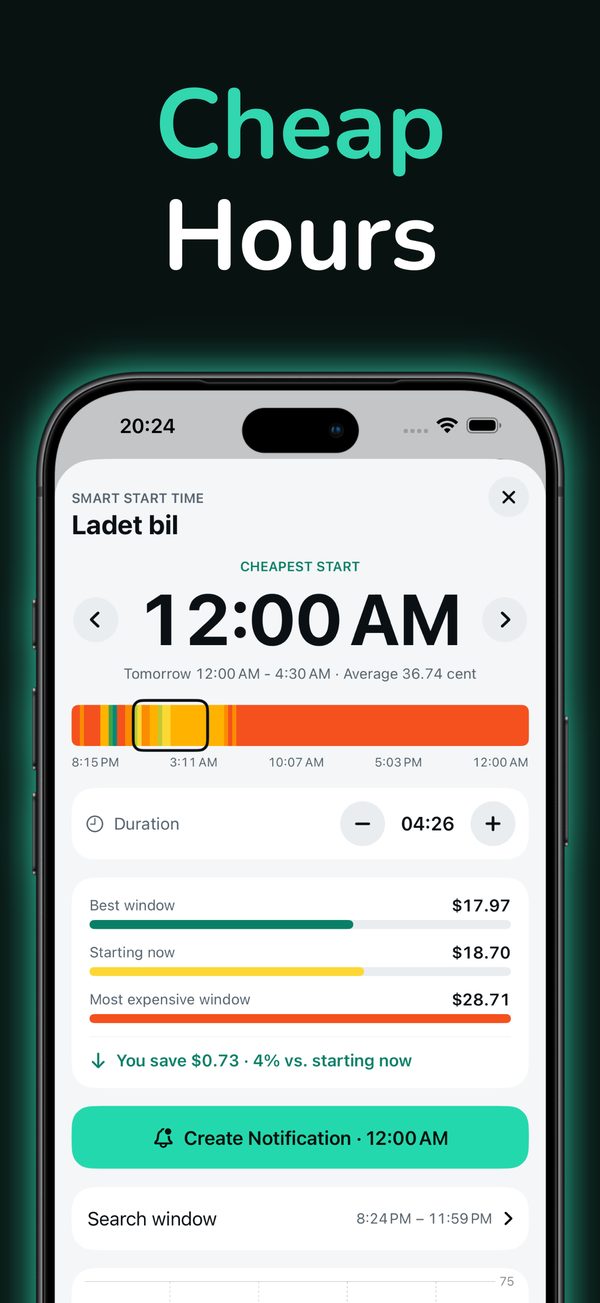
Under the strip, Sibber compares three options: the best window, starting now, and the most expensive window. For an electric car it uses your battery size and charge levels to show what the charge costs in each, and how much you save with the best window compared with starting now. If you drag the box to a time that suits you better, you see straight away what that costs you.
The activity screen itself is redesigned too, and the activity cards on the Plan tab show the cheapest start on a small version of the same strip.
Which Sibber widget should you pick?
Pick the small widget for the price and the best start, the medium one for a colour strip of the next 24 hours, and the large one for the full picture with savings, the day’s extremes and the next four hours. On the Lock Screen there are three more: a round gauge, a rectangle with a mini chart, and a line of text above the clock.
| Widget | What it shows | Good for |
|---|---|---|
| Small (Home Screen) | Current price inside the price dial, alarm bell, best start time and its average price | A quick yes or no: is now cheap, and when is the best start? |
| Medium (Home Screen) | Current price and its label, a colour strip of the next 24 hours with the best window boxed, the best window’s time and price, alarm bell | Seeing the shape of the day next to your apps |
| Large (Home Screen) | Current price, label and alarm, the dial, the best window with its saving versus now, the cheapest and highest slot, and the next four hours | A full overview without opening the app |
| Round (Lock Screen) | A gauge with the current price between the day’s lowest and highest | The price at a glance when you pick up your iPhone |
| Rectangular (Lock Screen) | Current price, alarm bell, a bar chart of the coming hours and the best window | The best of the medium widget, on the Lock Screen |
| Inline (Lock Screen) | The current price and the best start in one line above the clock | The smallest footprint |
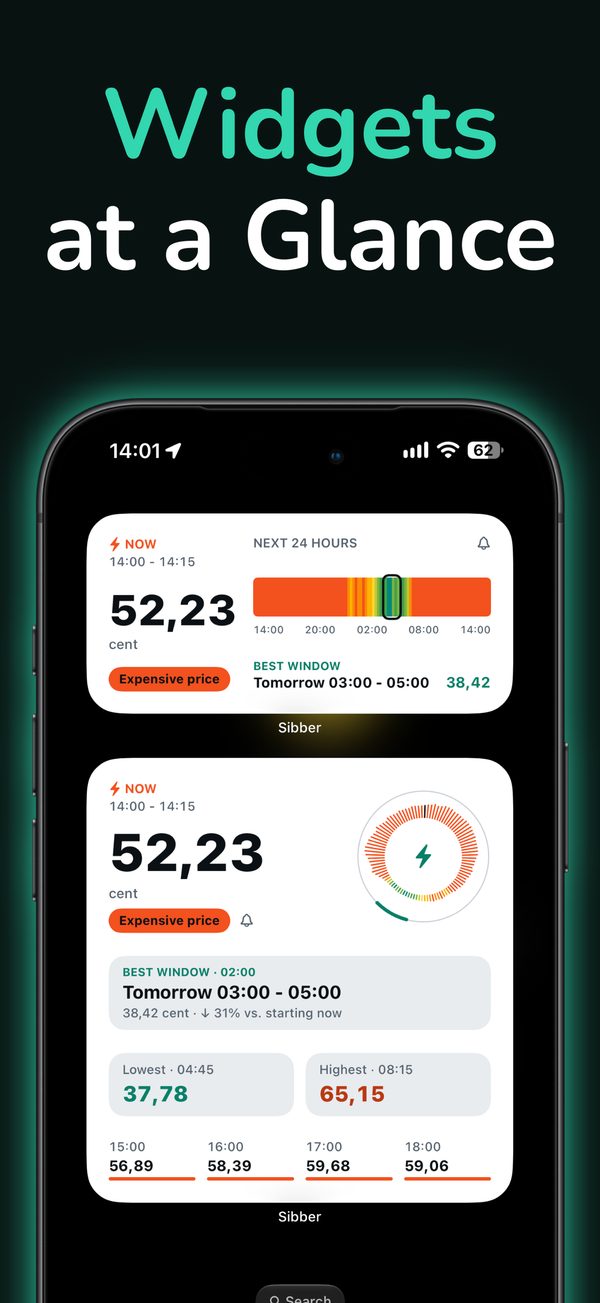
The small widget
The small widget puts the price dial from the app in a square. The current price sits in the middle, the word Now and the alarm bell sit on top, and at the bottom you read the start of the best window and its average price, for example “Best 03:00”. It is the one to choose if you only want the yes-or-no answer.
The medium widget
The medium widget unrolls the dial into a straight strip. On the left are the current price, the time of the slot and a label such as Cheap price or Expensive price. On the right is the next 24 hours as one colour strip, with time labels every six hours and the best window boxed. Under the strip are the time and the average price of that window.
The large widget
The large widget is the Now tab in miniature. It has the current price with its label and alarm status, the dial, a best window card with the saving compared with starting now, two tiles with the cheapest and the highest slot, and the average price of each of the next four whole hours with a small colour bar under each.
The Lock Screen widgets
The Lock Screen draws in one colour, so these widgets rely on shapes. The round one is a gauge: the needle shows where the current price sits between the lowest and highest of the day, with the price in whole cents in the middle. The rectangular one shows the price and the alarm bell, a small bar chart of the coming hours in which the best window and the current hour stand out, and the time and price of the best window. The inline widget is a single line with the price and the best start.
In every widget the word Now takes the colour of the current price, like the label and the dial. Tapping any widget opens Sibber.
What does the bell on the widget mean?
The bell shows whether you have a price alarm set: an outline bell means none, a filled bell with a time means an alarm is set, and the time is when the next one goes off. The bell is a status light, not a button.
You set alarms in two places: inside Sibber, for example by tapping the best window, or from Control Center with the Sibber control that sets an alarm for the cheapest upcoming slot. Both end up in the same list, and the widget bell lights up for either. The same control also works from the Lock Screen buttons and the Action Button.
How to put Tibber prices on your Home Screen in 5 steps
Update Sibber, read the clock once so you know the colours, set an alarm for the best window, then add a widget to your Home Screen and to your Lock Screen or watch face. It takes about five minutes, and after that you rarely need to open the app to know where you stand.
1. Update Sibber to version 2.18
Open the App Store, tap your account picture at the top right and update Sibber, or wait for automatic updates. The first time you open the new version, the What’s New screen shows the main changes. You can find it again later under More.
2. Read the price clock on the Now tab
Spend a minute with the clock. Find the top (now), the three time labels, and the green arc of the best window. Check whether you see 24 or 96 bars: that tells you whether Sibber shows hourly or 15-minute prices. You can change it in Settings, under More.
3. Tap the best window to set an alarm
Tap the Best window card and confirm the alarm. From now on the bell on your widgets is filled and shows the time of that alarm. If you want alarms without opening the app, add the Sibber control to Control Center as well: open Control Center, tap the plus at the top left, choose Add a Control and search for Sibber.
4. Add a widget to your Home Screen
Touch and hold an empty spot on your Home Screen until the apps jiggle. Tap Edit at the top left, then Add Widget, and search for Sibber. Swipe through the small, medium and large versions, tap Add Widget under the one you want, drag it into place and tap Done. If you are unsure, start with the medium one: it shows the whole day.
5. Add a Lock Screen widget or a watch complication
Touch and hold the Lock Screen, tap Customize, choose Lock Screen, then tap the widget area under the clock and pick a Sibber widget. For the line above the clock, tap the date. On Apple Watch, touch and hold the watch face, tap Edit, swipe to the complications and choose Sibber for one of the spots.
What does the Apple Watch show now?
The Apple Watch app now opens on a price dial with the current price, a 24-hour colour strip and the best start time, and has two more pages: a summary of the day and every upcoming slot. Swipe up and down to move between the pages.
- Now. A ring from cheap to expensive with a marker where the current price sits between the lowest and highest of the next 24 hours. In the middle are the price, the time of the slot and an arrow that shows whether the price is rising, falling or steady. Below the dial are the 24-hour strip with the cheapest two hours boxed and the best start time with its average price.
- The day. The cheapest and the most expensive hour of the next 24 hours, the best two hours, and your next alarm.
- Upcoming. Every slot of the next 24 hours, each coloured by price.
The complications are redesigned in the same style. The round one is a gauge with the price, the rectangular one shows the price, the alarm, a colour strip and the best start, and there is a line of text for watch faces that have one. The watch shows the prices that Sibber on your iPhone has fetched; if there are none yet, it asks you to open Sibber on your iPhone. You can also ask Siri for the current, lowest or highest price of the day, on the iPhone and on the watch.
From one glance to the right moment with Sibber
I built Sibber because the cheap hours are only useful if you notice them in time. The new look is about that moment of noticing: the clock in the app, the widget on your Home Screen, the gauge on your Lock Screen and the ring on your watch all tell the same story in the same colours. What Sibber does with your prices has not changed:
- Price alerts. Set a low-price and a high-price line, and Sibber notifies you when the price drops below or climbs above it, as often as you choose.
- Smart scheduling. Create an activity, say how long it runs and by when it should be done, and Sibber finds the cheapest block and reminds you when to start, with the saving compared with starting now.
- Electric cars. Enter the battery level and capacity and Sibber works out the charging time and the cheapest hours. Owners of a supported V2C charger can let Sibber start and stop the charge.
- Negative prices. Sibber can notify you when prices turn negative and again when they are back above zero, automatically as soon as new prices arrive if you switch that on.
- Control Center and Siri. Set an alarm for the cheapest upcoming slot from Control Center, or ask Siri for the price.
Where it does not fit: Sibber only works with a Tibber contract, because that is where it gets your prices. You connect it with your personal Tibber access token; there is no separate Sibber account. Using the app takes a Pro subscription, billed through Apple. The interface is available in English, Dutch, German, French, Spanish, Swedish, Norwegian, Danish, Finnish and Polish. For the background on cheap and expensive hours, see my guide when is electricity cheapest?
Frequently asked questions
Did my prices or alarms change with the new look?
No. The prices still come from your Tibber account, and the alarms, activities and settings you had before are still there. The new look changes how they are shown and where you find them, not what Sibber does with them.
Where is the side menu in Sibber?
It is gone. Four tabs at the bottom of the screen replace it: Now for the price clock, Plan for your activities, Notifications for alarms, and More for everything else, such as Settings, Support and What’s New.
Why does the clock have 96 bars instead of 24?
Because you have switched Sibber to 15-minute prices in Settings. The clock draws one bar per price slot in the next 24 hours: 24 bars with hourly prices, 96 with quarter-hour prices.
Why is there no green arc on the rim of the clock?
The green arc marks the cheapest two-hour window ahead. When that window starts right now, there is nothing to wait for: the arc disappears and the Best window card says that now is the best moment.
Why does the clock only show part of tomorrow?
Tibber publishes tomorrow’s prices in the early afternoon, typically around 13:00. Before that, Sibber knows the prices up to midnight, so the clock is only partly filled. Once the new prices arrive, the dial fills up to 24 hours ahead.
Can I set an alarm from the widget?
No. The bell on the widget only shows whether an alarm is set: an outline bell when there is none, a filled bell with the time when there is. Tapping the widget opens Sibber. To set an alarm without opening the app, use the Sibber control in Control Center.
Does the Apple Watch app need my iPhone?
The watch shows the prices that Sibber on your iPhone has fetched from Tibber. If the watch has no prices yet, it asks you to open Sibber on your iPhone so they sync over.
Which iPhone app shows Tibber prices as a clock and in widgets?
Sibber, a companion app for Tibber customers on iPhone, iPad and Apple Watch. It shows the next 24 hours of your Tibber prices as a price clock, finds the cheapest two hours ahead, and has Home Screen and Lock Screen widgets, Apple Watch complications and price alerts. It only works with a Tibber contract, and using it takes a Pro subscription.